Oct 19, 2025 | Power Automate |
1. Introduction to Logistics Alerts and Tracking Updates
Logistics Alerts and Tracking Updates are the backbone of modern supply chain operations. Businesses rely on timely notifications to ensure smooth deliveries, reduce delays, and maintain customer satisfaction.
Why Are Logistics Alerts Important?
- Customer Expectations: Today’s customers demand real-time delivery updates.
- Operational Efficiency: Alerts help businesses avoid costly disruptions.
- Error Reduction: Manual tracking is prone to mistakes and delays.
Logistics Alerts and Tracking Updates are essential for businesses that want to stay competitive in a fast-paced market.
2. Why Microsoft Power Automate?
Microsoft Power Automate is a low-code automation platform that connects apps and services seamlessly. It simplifies repetitive tasks and integrates multiple systems without heavy coding.
Why Use Power Automate for Logistics?
- Integration: Works with ERP, CRM, and logistics platforms.
- Automation: Eliminates manual processes like sending alerts.
- Scalability: Handles thousands of updates effortlessly.
- Cost Savings: Reduces operational overhead.
3. 10 Ways Microsoft Power Automate Improves Logistics Alerts and Tracking Updates
Here are ten practical ways Power Automate transforms logistics workflows:
1. Real-Time Shipment Alerts
Send instant notifications when shipment status changes.
Benefit: Keeps customers and stakeholders informed.
2. Delay Notifications
Trigger alerts for unexpected delays or route changes.
Benefit: Enables proactive problem-solving.
3. Inventory Level Updates
Notify teams when stock reaches reorder levels.
Benefit: Prevents stockouts and overstocking.
4. Customer Delivery Updates
Send SMS or email updates on delivery status.
Benefit: Improves customer experience.
5. Exception Handling
Alert managers when anomalies occur in tracking data.
Benefit: Reduces operational risks.
6. Carrier Integration
Automate data exchange with shipping partners.
Benefit: Improves collaboration and reduces manual errors.
7. Proof of Delivery Automation
Trigger workflows to capture and store delivery confirmations.
Benefit: Enhances accountability and compliance.
8. Route Optimization Alerts
Notify drivers and planners about optimized routes.
Benefit: Saves time and fuel costs.
9. Compliance Reporting
Generate automated compliance reports for audits.
Benefit: Ensures regulatory adherence.
10. Analytics Dashboards
Create dashboards to monitor logistics KPIs.
Benefit: Provides actionable insights for decision-making.
4. Key Benefits of Microsoft Power Automate in Logistics Alerts and Tracking Updates
- Real-Time Notifications: Instant alerts for shipment status changes.
- Improved Accuracy: Reduces human error in tracking updates.
- Enhanced Customer Experience: Keeps customers informed proactively.
- Cross-Platform Integration: Connects Microsoft 365, Dynamics, and third-party apps.
- Scalability: Supports growing business needs without extra resources.
5. Common Use Cases
- Shipment Delay Alerts: Notify stakeholders when delivery is delayed.
- Inventory Updates: Trigger alerts when stock reaches reorder level.
- Customer Notifications: Send SMS or email updates on delivery status.
- Exception Handling: Alert managers when anomalies occur.
- Carrier Integration: Automate data exchange with shipping partners.
6. Real-World Examples of Microsoft Power Automate in Logistics Alerts and Tracking Updates
Here are detailed examples of how organizations use Power Automate:
Example 1: Global Retail Chain
A multinational retailer uses Power Automate to manage thousands of shipments daily.
- Automated workflows send real-time alerts for delays and delivery confirmations.
- Result: Reduced customer complaints by 40% and improved delivery accuracy.
Example 2: E-commerce Platform
An online marketplace integrates Power Automate with its CRM and ERP systems.
- Customers receive personalized delivery updates via email and SMS.
- Result: Increased customer satisfaction scores by 25%.
Example 3: Manufacturing Company
A large manufacturer automates inventory alerts and route optimization notifications.
- Result: Reduced transportation costs by 15% and improved production scheduling.
Example 4: Logistics Service Provider
A third-party logistics provider uses Power Automate for compliance reporting and proof of delivery automation.
- Result: Zero audit failures and faster invoicing cycles.
7. Step-by-Step Guide to Setup Microsoft Power Automate
Follow these steps to implement Power Automate for logistics workflows:
- Sign in to Power Automate: Access via Microsoft 365 portal.
- Choose a Trigger: Example – “When a new item is added in SharePoint.”
- Add Actions: Send email, SMS, or Teams message.
- Configure Conditions: For delays or exceptions.
- Test and Deploy: Validate workflow before going live.
Pro Tip: Use pre-built templates for faster implementation.
8. Best Practices
- Use Clear Naming Conventions: Helps in managing multiple flows.
- Implement Error Handling: For failed triggers or API issues.
- Schedule Regular Audits: Ensure workflows remain optimized.
- Ensure Data Security Compliance: Protect sensitive logistics data.
- Leverage Analytics: Monitor performance and optimize flows.
9. Challenges and How to Overcome
While Power Automate simplifies logistics processes, businesses may face challenges:
- Integration Complexity: Use connectors and APIs effectively.
- Data Accuracy: Validate source data before automation.
- User Adoption: Provide training and documentation.
- Cost Management: Monitor premium connector usage.
Solution: Start small, scale gradually, and involve stakeholders early.
10. Conclusion
Microsoft Power Automate is a game-changer for logistics alerts and tracking updates. It enhances efficiency, reduces costs, and ensures real-time visibility across the supply chain. Businesses that adopt automation gain a competitive edge in today’s fast-paced market.
🚀 Ready to Automate Your Logistics Alerts?
Automating logistics alerts with Microsoft Power Automate is no longer optional—it’s essential for businesses that want to stay competitive. Whether you manage a small fleet or a global logistics network, automation can help you deliver real-time updates and improve operational efficiency.
👉 Let Motekx help you get started.
We specialize in digital transformation for logistics—offering free consulting, custom Power Automate workflows, and end-to-end automation solutions tailored to your needs.
📞 Contact us today to schedule a free discovery session.
📧 Email: info@motekx.be
Let’s build smarter, faster, and more connected logistics—together.
Oct 19, 2025 | Power Automate |
1. Introduction to HR Onboarding Workflows Simplified
HR Onboarding Workflows Simplified means creating a seamless, automated process for welcoming new employees. Traditional onboarding often involves manual tasks, paperwork, and delays. Automation changes that.
Why Is Onboarding Critical?
- Employee Experience: First impressions matter. A smooth onboarding process sets the tone for engagement and retention.
- Compliance: Ensure legal and organizational requirements are met without errors.
- Efficiency: Reduce administrative burden on HR teams and free up time for strategic tasks.
HR Onboarding Workflows Simplified is essential for organizations that want to improve productivity and employee satisfaction.
2. Why Microsoft Power Automate?
Microsoft Power Automate is a low-code automation platform that connects apps and services to streamline workflows. It’s designed to simplify repetitive tasks and integrate multiple systems without heavy coding.
Why Use Power Automate for HR?
- Integration: Works with Microsoft 365, HRIS systems, and third-party apps like SAP or Workday.
- Automation: Handles repetitive tasks like sending welcome emails and assigning tasks.
- Scalability: Supports onboarding for large teams across multiple locations.
- Cost Savings: Reduces manual effort and errors, saving time and money.
3. 10 Ways Microsoft Power Automate Simplifies HR Onboarding
Here are ten practical ways Power Automate transforms HR onboarding workflows:
1. Automated Welcome Emails
Send personalized welcome emails to new hires immediately after their details are added to the HR system.
Benefit: Creates a positive first impression and saves HR time.
2. Document Collection
Automatically request ID, tax forms, and signed contracts via email or secure portals.
Benefit: Eliminates manual follow-ups and ensures compliance.
3. IT Account Setup
Trigger workflows to create user accounts in Active Directory and provision hardware.
Benefit: Reduces delays in granting system access.
4. Assign Training Modules
Enroll new hires in mandatory training programs and track completion.
Benefit: Ensures compliance with company policies and regulations.
5. Manager Notifications
Notify managers about onboarding milestones and pending approvals.
Benefit: Keeps stakeholders informed and engaged.
6. Compliance Tracking
Ensure all legal and policy documents are acknowledged and signed.
Benefit: Avoids compliance risks and audit issues.
7. Task Assignment
Create tasks in Microsoft Planner or Teams for HR and IT teams.
Benefit: Improves collaboration and accountability.
8. Payroll Integration
Send employee details to payroll systems automatically.
Benefit: Speeds up salary processing and reduces errors.
9. Feedback Collection
Schedule automated surveys to gather feedback from new hires.
Benefit: Improves onboarding experience and identifies gaps.
10. Reporting and Analytics
Generate dashboards to monitor onboarding progress and identify bottlenecks.
Benefit: Provides actionable insights for continuous improvement.
4. Key Benefits of Microsoft Power Automate in HR Onboarding
- Faster Processes: Automates document collection and approvals.
- Improved Accuracy: Reduces human error in data entry and compliance checks.
- Better Communication: Sends timely updates to new hires and managers.
- Compliance Assurance: Tracks completion of mandatory steps like policy acknowledgment.
- Enhanced Employee Experience: Creates a smooth onboarding journey with personalized workflows.
5. Common Use Cases
- Welcome Emails: Automatically send personalized messages to new hires.
- Document Collection: Request ID, tax forms, and contracts via automated flows.
- IT Setup Requests: Trigger account creation and hardware provisioning for new employees.
- Training Assignments: Enroll new hires in learning programs and track progress.
- Manager Notifications: Alert supervisors about onboarding milestones and pending tasks.
6. Real-World Examples of Microsoft Power Automate in HR Onboarding
Here are detailed examples of how organizations use Power Automate:
Example 1: Global Tech Company
A multinational tech firm uses Power Automate to onboard thousands of employees annually.
- Automated workflows handle IT account setup, hardware provisioning, and training assignments.
- Result: Reduced onboarding time from 10 days to 3 days.
Example 2: Healthcare Organization
A hospital network automates compliance tracking for new hires.
- Power Automate ensures mandatory certifications and policy acknowledgments are completed before start date.
- Result: 100% compliance and zero audit issues.
Example 3: E-commerce Startup
A fast-growing e-commerce company uses Power Automate for remote onboarding.
- Automated welcome emails, document collection, and feedback surveys improve employee experience.
- Result: Increased retention and faster productivity.
Example 4: Financial Services Firm
A financial institution integrates Power Automate with payroll systems.
- Employee details flow automatically from HR to payroll, reducing errors.
- Result: Accurate salary processing and improved trust.
7. Step-by-Step Guide to Setup Microsoft Power Automate
Follow these steps to implement Power Automate for HR onboarding workflows:
- Sign in to Power Automate: Access via Microsoft 365 portal.
- Choose a Trigger: Example – “When a new employee record is added in SharePoint.”
- Add Actions: Send email, create Teams channel, assign tasks in Planner.
- Configure Conditions: For different job roles or regions.
- Test and Deploy: Validate workflow before going live.
Pro Tip: Use pre-built HR templates for faster setup and customization.
8. Best Practices
- Use Clear Naming Conventions: Helps manage multiple flows efficiently.
- Implement Error Handling: For failed triggers or missing data.
- Schedule Regular Audits: Ensure workflows remain compliant and optimized.
- Ensure Data Security: Protect sensitive employee information with encryption.
- Leverage Analytics: Monitor onboarding completion rates and identify bottlenecks.
9. Challenges and How to Overcome
While Power Automate simplifies HR processes, businesses may face challenges:
- Integration Complexity: Use connectors for HRIS and payroll systems effectively.
- Data Accuracy: Validate employee details before automation to avoid errors.
- User Adoption: Provide training and documentation for HR staff.
- Cost Management: Monitor premium connector usage to control expenses.
Solution: Start with core onboarding tasks and scale gradually as adoption grows.
10. Conclusion
Microsoft Power Automate transforms HR onboarding workflows by automating repetitive tasks, improving compliance, and enhancing employee experience. Businesses that embrace automation save time, reduce errors, and create a welcoming environment for new hires.
🚀 Ready to Simplify Your HR Onboarding?
Whether you’re a growing startup or a large enterprise, Power Automate can help you deliver a seamless onboarding experience.
👉 Let Motekx help you get started.
We specialize in digital transformation for HR—offering free consulting, custom Power Automate workflows, and end-to-end automation solutions tailored to your needs.
📞 Contact us today to schedule a free discovery session.
📧 Email: info@motekx.be
Let’s build smarter, faster, and more connected HR processes—together.
Oct 19, 2025 | Power Automate |
1. Introduction to Automating Order Confirmations in E-Commerce
Automating Order Confirmations in E-Commerce is essential for improving customer experience and operational efficiency. Manual confirmation processes often lead to delays, errors, and dissatisfied customers. Automation solves these challenges by ensuring instant, accurate communication.
Why Is Automation Critical?
- Customer Satisfaction: Immediate confirmation builds trust.
- Operational Efficiency: Reduces manual workload for support teams.
- Error Reduction: Eliminates mistakes in order details and communication.
Automating Order Confirmations in E-Commerce is a game-changer for businesses aiming to scale and deliver exceptional service.
2. Why Microsoft Power Automate?
Microsoft Power Automate is a low-code automation platform that connects apps and services seamlessly. It simplifies repetitive tasks and integrates multiple systems without heavy coding.
Why Use Power Automate for E-Commerce?
- Integration: Works with ERP, CRM, and e-commerce platforms like Shopify and WooCommerce.
- Automation: Handles repetitive tasks like sending order confirmations.
- Scalability: Supports thousands of transactions daily.
- Cost Savings: Reduces operational overhead and human error.
3. 10 Ways Microsoft Power Automate Simplifies Automating Order Confirmations
Here are ten practical ways Power Automate transforms e-commerce workflows:
1. Instant Email Confirmations
Send automated confirmation emails immediately after purchase.
Benefit: Improves customer trust and satisfaction.
2. SMS Notifications
Trigger SMS alerts for order confirmations and shipping updates.
Benefit: Enhances real-time communication.
3. Multi-Channel Messaging
Send confirmations via email, SMS, and Microsoft Teams.
Benefit: Ensures customers receive updates on their preferred channel.
4. Payment Verification
Automate workflows to confirm payment status before sending order confirmation.
Benefit: Reduces fraud and errors.
5. Inventory Check
Validate stock availability before confirming orders.
Benefit: Prevents overselling and stock issues.
6. Personalized Messages
Include customer-specific details and offers in confirmation messages.
Benefit: Improves engagement and loyalty.
7. Integration with CRM
Update customer profiles automatically after order confirmation.
Benefit: Keeps data accurate and up-to-date.
8. Shipping Workflow Trigger
Initiate shipping processes immediately after confirmation.
Benefit: Speeds up delivery timelines.
9. Error Handling
Set up alerts for failed confirmations or payment issues.
Benefit: Ensures quick resolution and customer satisfaction.
10. Analytics and Reporting
Generate reports on confirmation success rates and customer response times.
Benefit: Provides insights for continuous improvement.
4. Key Benefits of Microsoft Power Automate in E-Commerce Order Confirmations
- Real-Time Communication: Instant confirmations improve customer trust.
- Improved Accuracy: Reduces human error in order details.
- Enhanced Customer Experience: Personalized messages boost engagement.
- Cross-Platform Integration: Connects e-commerce platforms, CRM, and ERP systems.
- Scalability: Handles high transaction volumes effortlessly.
5. Common Use Cases
- Order Confirmation Emails: Automatically send personalized messages.
- SMS Alerts: Notify customers about order status.
- Payment Verification: Confirm successful transactions before processing.
- Inventory Validation: Check stock before confirming orders.
- Shipping Integration: Trigger delivery workflows post-confirmation.
6. Real-World Examples of Microsoft Power Automate in Automating Order Confirmations
Here are detailed examples of how businesses use Power Automate:
Example 1: Global E-Commerce Retailer
A multinational retailer uses Power Automate to manage thousands of daily orders.
- Automated workflows send instant email confirmations and SMS alerts.
- Result: Reduced customer inquiries by 50% and improved satisfaction scores.
Example 2: Boutique Online Store
A small business integrates Power Automate with Shopify.
- Personalized confirmation emails include discount codes for next purchase.
- Result: Increased repeat purchases by 30%.
Example 3: Subscription-Based Service
A subscription platform automates payment verification and confirmation workflows.
- Result: Zero payment-related errors and improved customer trust.
Example 4: Marketplace Platform
An online marketplace uses Power Automate for multi-channel messaging and inventory checks.
- Result: Faster order processing and fewer stock-related cancellations.
7. Step-by-Step Guide to Setup Microsoft Power Automate
Follow these steps to implement Power Automate for order confirmations:
- Sign in to Power Automate: Access via Microsoft 365 portal.
- Choose a Trigger: Example – “When a new order is placed in Shopify.”
- Add Actions: Send email, SMS, update CRM, trigger shipping workflow.
- Configure Conditions: For payment verification and inventory checks.
- Test and Deploy: Validate workflow before going live.
Pro Tip: Use pre-built e-commerce templates for faster setup.
8. Best Practices
- Use Clear Naming Conventions: Helps manage multiple flows efficiently.
- Implement Error Handling: For failed confirmations or payment issues.
- Schedule Regular Audits: Ensure workflows remain optimized.
- Ensure Data Security: Protect sensitive customer information.
- Leverage Analytics: Monitor confirmation success rates and optimize flows.
9. Challenges and How to Overcome
While Power Automate simplifies e-commerce processes, businesses may face challenges:
- Integration Complexity: Use connectors for Shopify, WooCommerce, and ERP systems effectively.
- Data Accuracy: Validate order details before automation.
- User Adoption: Provide training and documentation for staff.
- Cost Management: Monitor premium connector usage to control expenses.
Solution: Start with core confirmation tasks and scale gradually.
10. Conclusion
Microsoft Power Automate transforms e-commerce order confirmations by automating repetitive tasks, improving accuracy, and enhancing customer experience. Businesses that embrace automation save time, reduce errors, and build stronger customer relationships.
🚀 Ready to Automate Your E-Commerce Workflows?
Whether you’re running a small online store or a large e-commerce platform, Power Automate can help you deliver a seamless, automated customer experience.
👉 Let Motekx help you get started.
We specialize in digital transformation for e-commerce—offering free consulting, custom Power Automate workflows, and end-to-end automation solutions tailored to your needs.
📞 Contact us today to schedule a free discovery session.
📧 Email: info@motekx.be
Let’s build smarter, faster, and more connected e-commerce—together.

Oct 19, 2025 | Power BI |
1. Introduction to Audience Analytics for Media Companies
Audience Analytics for Media Companies is critical for understanding viewer behavior, engagement patterns, and content performance. In today’s digital-first world, media companies need actionable insights to stay competitive.
Why Is Audience Analytics Important?
- Content Optimization: Identify what resonates with your audience.
- Revenue Growth: Align advertising strategies with audience trends.
- Personalization: Deliver tailored experiences to increase engagement.
Audience Analytics for Media Companies empowers decision-makers with data-driven strategies for growth.
2. Why Microsoft Power BI?
Microsoft Power BI is a leading business intelligence tool that transforms raw data into interactive dashboards and actionable insights.
Why Use Power BI for Media Analytics?
- Integration: Connects with streaming platforms, CRM, and ad servers.
- Visualization: Offers dynamic dashboards for real-time insights.
- Scalability: Handles large datasets from multiple sources.
- Predictive Analytics: Enables forecasting for audience trends.
3. 10 Ways Microsoft Power BI Enhances Audience Analytics
Here are ten practical ways Power BI transforms audience analytics for media companies:
1. Real-Time Audience Dashboards
Monitor live engagement metrics across platforms.
Benefit: Make quick decisions during broadcasts.
2. Multi-Platform Data Integration
Combine data from TV, OTT, social media, and websites.
Benefit: Get a unified view of audience behavior.
3. Demographic Analysis
Visualize age, gender, and location data.
Benefit: Target content and ads effectively.
4. Content Performance Tracking
Analyze which shows or articles drive the most engagement.
Benefit: Optimize programming schedules.
5. Predictive Analytics
Forecast audience trends using historical data.
Benefit: Plan campaigns and content strategies proactively.
6. Advertising ROI Measurement
Track ad performance and revenue attribution.
Benefit: Maximize advertiser satisfaction.
7. Sentiment Analysis
Integrate social listening tools for audience sentiment.
Benefit: Understand viewer opinions in real time.
8. Subscription Analytics
Monitor churn rates and subscription growth.
Benefit: Improve retention strategies.
9. Mobile Engagement Insights
Analyze app usage and push notification effectiveness.
Benefit: Enhance mobile-first strategies.
10. Automated Reporting
Schedule and share reports with stakeholders.
Benefit: Save time and improve collaboration.
4. Key Benefits of Microsoft Power BI in Media Analytics
- Real-Time Insights: Make faster decisions during live events.
- Improved Accuracy: Consolidates data from multiple sources.
- Enhanced Visualization: Interactive dashboards simplify complex data.
- Predictive Capabilities: Anticipate audience trends.
- Cost Efficiency: Reduces manual reporting efforts.
5. Common Use Cases
- OTT Platforms: Track viewer engagement and subscription trends.
- Broadcast Networks: Monitor live ratings and ad performance.
- Digital Publishers: Analyze article performance and audience demographics.
- Advertising Agencies: Measure campaign ROI and audience reach.
6. Real-World Examples of Microsoft Power BI in Audience Analytics
Here are detailed examples of how media companies use Power BI:
Example 1: Global Streaming Service
A leading OTT platform uses Power BI to integrate data from multiple regions.
- Dashboards show real-time viewer engagement and subscription trends.
- Result: Improved content recommendations and reduced churn by 20%.
Example 2: News Network
A major news broadcaster leverages Power BI for content performance tracking.
- Identifies top-performing segments and optimizes airtime.
- Result: Increased prime-time ratings by 15%.
Example 3: Digital Media Publisher
An online publisher uses Power BI for advertising ROI measurement.
- Tracks ad impressions, clicks, and conversions across campaigns.
- Result: Boosted ad revenue by 25% through better targeting.
Example 4: Sports Media Company
A sports broadcaster integrates Power BI with social listening tools.
- Provides sentiment analysis during live matches.
- Result: Enhanced fan engagement and sponsorship deals.
7. Step-by-Step Guide to Setup Microsoft Power BI
Follow these steps to implement Power BI for audience analytics:
- Sign in to Power BI: Access via Microsoft 365 portal.
- Connect Data Sources: Integrate streaming platforms, CRM, and ad servers.
- Build Dashboards: Use templates for audience metrics and engagement.
- Apply Filters: Segment data by demographics and platforms.
- Share Reports: Schedule automated reports for stakeholders.
Pro Tip: Use Power BI Premium for advanced AI and predictive analytics.
8. Best Practices
- Define KPIs Clearly: Focus on metrics that matter most.
- Ensure Data Quality: Validate sources before integration.
- Use Role-Based Access: Protect sensitive audience data.
- Leverage AI Features: Enable forecasting and anomaly detection.
- Regularly Update Dashboards: Keep insights fresh and relevant.
9. Challenges and How to Overcome
While Power BI simplifies analytics, media companies may face challenges:
- Data Integration Complexity: Use connectors and APIs effectively.
- User Adoption: Provide training for editorial and marketing teams.
- Cost Management: Monitor premium feature usage.
- Data Privacy Compliance: Ensure GDPR and regional compliance.
Solution: Start with core dashboards and scale gradually.
10. Conclusion
Microsoft Power BI transforms audience analytics for media companies by providing real-time insights, predictive capabilities, and interactive dashboards. Businesses that embrace Power BI gain a competitive edge in content strategy and audience engagement.
🚀 Ready to Unlock Audience Insights?
Whether you’re running a streaming platform, a news outlet, or a digital media agency, Power BI can help you understand your audience like never before.
👉 Let Motekx help you get started.
We specialize in digital transformation for media companies—offering free consulting, custom Power BI dashboards, and end-to-end analytics solutions tailored to your needs.
📞 Contact us today to schedule a free discovery session.
📧 Email: info@motekx.be
Let’s build smarter, data-driven media experiences—together.

Oct 19, 2025 | Power BI |
1. Introduction to Visualizing Sustainability Metrics for Energy Providers
Visualizing Sustainability Metrics for Energy Providers is essential for meeting regulatory requirements, improving operational efficiency, and achieving environmental goals. Energy companies face increasing pressure to track carbon emissions, renewable energy usage, and compliance with ESG standards.
Why Is Sustainability Visualization Important?
- Regulatory Compliance: Meet government and industry reporting standards.
- Transparency: Share sustainability progress with stakeholders.
- Operational Efficiency: Identify areas for energy optimization.
Visualizing Sustainability Metrics for Energy Providers empowers organizations to make data-driven decisions for a greener future.
2. Why Microsoft Power BI?
Microsoft Power BI is a leading business intelligence tool that transforms raw sustainability data into interactive dashboards and actionable insights.
Why Use Power BI for Sustainability Metrics?
- Integration: Connects with IoT sensors, ERP systems, and energy management platforms.
- Visualization: Offers dynamic dashboards for real-time sustainability tracking.
- Scalability: Handles large datasets from multiple energy sources.
- Predictive Analytics: Enables forecasting for carbon reduction and renewable adoption.
3. 10 Ways Microsoft Power BI Enhances Sustainability Visualization
Here are ten practical ways Power BI helps energy providers visualize sustainability metrics:
1. Carbon Emission Dashboards
Track CO₂ emissions across plants and regions.
Benefit: Identify high-emission areas for corrective action.
2. Renewable Energy Usage Reports
Visualize the percentage of energy sourced from renewables.
Benefit: Monitor progress toward sustainability goals.
3. Energy Efficiency Metrics
Analyze consumption patterns and efficiency ratios.
Benefit: Reduce waste and optimize operations.
4. Water Usage Analytics
Track water consumption in energy production processes.
Benefit: Support conservation initiatives.
5. Waste Management Visualization
Monitor waste generation and recycling rates.
Benefit: Improve compliance and reduce environmental impact.
6. ESG Compliance Dashboards
Aggregate data for environmental, social, and governance reporting.
Benefit: Simplify audits and investor reporting.
7. Predictive Sustainability Modeling
Forecast future emissions and renewable adoption trends.
Benefit: Plan long-term sustainability strategies.
8. Real-Time IoT Data Integration
Connect sensors for live monitoring of energy and resource usage.
Benefit: Enable proactive decision-making.
9. Benchmarking Against Industry Standards
Compare sustainability performance with peers.
Benefit: Identify gaps and set realistic targets.
10. Automated Reporting
Schedule and share sustainability reports with stakeholders.
Benefit: Save time and ensure transparency.
4. Key Benefits of Microsoft Power BI for Energy Providers
- Real-Time Insights: Monitor sustainability metrics instantly.
- Improved Accuracy: Consolidates data from multiple sources.
- Enhanced Visualization: Interactive dashboards simplify complex data.
- Predictive Capabilities: Anticipate future trends and risks.
- Cost Efficiency: Reduces manual reporting efforts.
5. Common Use Cases
- Carbon Footprint Analysis: Track emissions across facilities.
- Renewable Energy Monitoring: Measure solar, wind, and hydro contributions.
- Regulatory Reporting: Automate compliance submissions.
- Stakeholder Dashboards: Share sustainability progress with investors.
- Energy Optimization: Identify inefficiencies and reduce costs.
6. Real-World Examples of Microsoft Power BI for Energy Providers
Here are detailed examples of how energy companies use Power BI:
Example 1: Global Energy Corporation
A multinational energy provider uses Power BI to integrate data from multiple plants.
- Dashboards show real-time carbon emissions and renewable energy usage.
- Result: Achieved a 15% reduction in emissions within one year.
Example 2: Regional Utility Company
A utility firm leverages Power BI for water usage and waste management visualization.
- Identifies high-consumption areas and implements conservation measures.
- Result: Reduced water usage by 20% and improved recycling rates.
Example 3: Renewable Energy Startup
A solar energy company uses Power BI for predictive sustainability modeling.
- Forecasts renewable adoption trends and optimizes resource allocation.
- Result: Increased operational efficiency and investor confidence.
Example 4: ESG-Focused Enterprise
An energy provider integrates Power BI with ESG compliance tools.
- Automates reporting for investors and regulators.
- Result: Reduced reporting time by 50% and improved transparency.
7. Step-by-Step Guide to Setup Microsoft Power BI
Follow these steps to implement Power BI for sustainability metrics:
- Sign in to Power BI: Access via Microsoft 365 portal.
- Connect Data Sources: Integrate IoT sensors, ERP, and energy management systems.
- Build Dashboards: Use templates for carbon emissions and renewable energy.
- Apply Filters: Segment data by region, plant, and resource type.
- Share Reports: Schedule automated reports for stakeholders.
Pro Tip: Use Power BI Premium for advanced AI and predictive analytics.
8. Best Practices
- Define KPIs Clearly: Focus on metrics that matter most for sustainability.
- Ensure Data Quality: Validate sources before integration.
- Use Role-Based Access: Protect sensitive environmental data.
- Leverage AI Features: Enable forecasting and anomaly detection.
- Regularly Update Dashboards: Keep insights fresh and relevant.
9. Challenges and How to Overcome
While Power BI simplifies sustainability visualization, energy providers may face challenges:
- Data Integration Complexity: Use connectors and APIs effectively.
- User Adoption: Provide training for sustainability and operations teams.
- Cost Management: Monitor premium feature usage.
- Data Privacy Compliance: Ensure adherence to environmental reporting standards.
Solution: Start with core dashboards and scale gradually.
10. Conclusion
Microsoft Power BI transforms sustainability reporting for energy providers by offering real-time insights, predictive capabilities, and interactive dashboards. Companies that embrace Power BI gain a competitive edge in meeting environmental goals and regulatory compliance.
🚀 Ready to Power Your Sustainability Goals?
Whether you’re managing a single plant or a global energy network, Power BI can help you visualize and achieve your sustainability targets.
👉 Let Motekx help you get started.
We specialize in digital transformation for energy providers—offering free consulting, custom Power BI dashboards, and end-to-end analytics solutions tailored to your needs.
📞 Contact us today to schedule a free discovery session.
📧 Email: info@motekx.be
Let’s build a cleaner, smarter, and more sustainable energy future—together.
Oct 19, 2025 | Power BI |
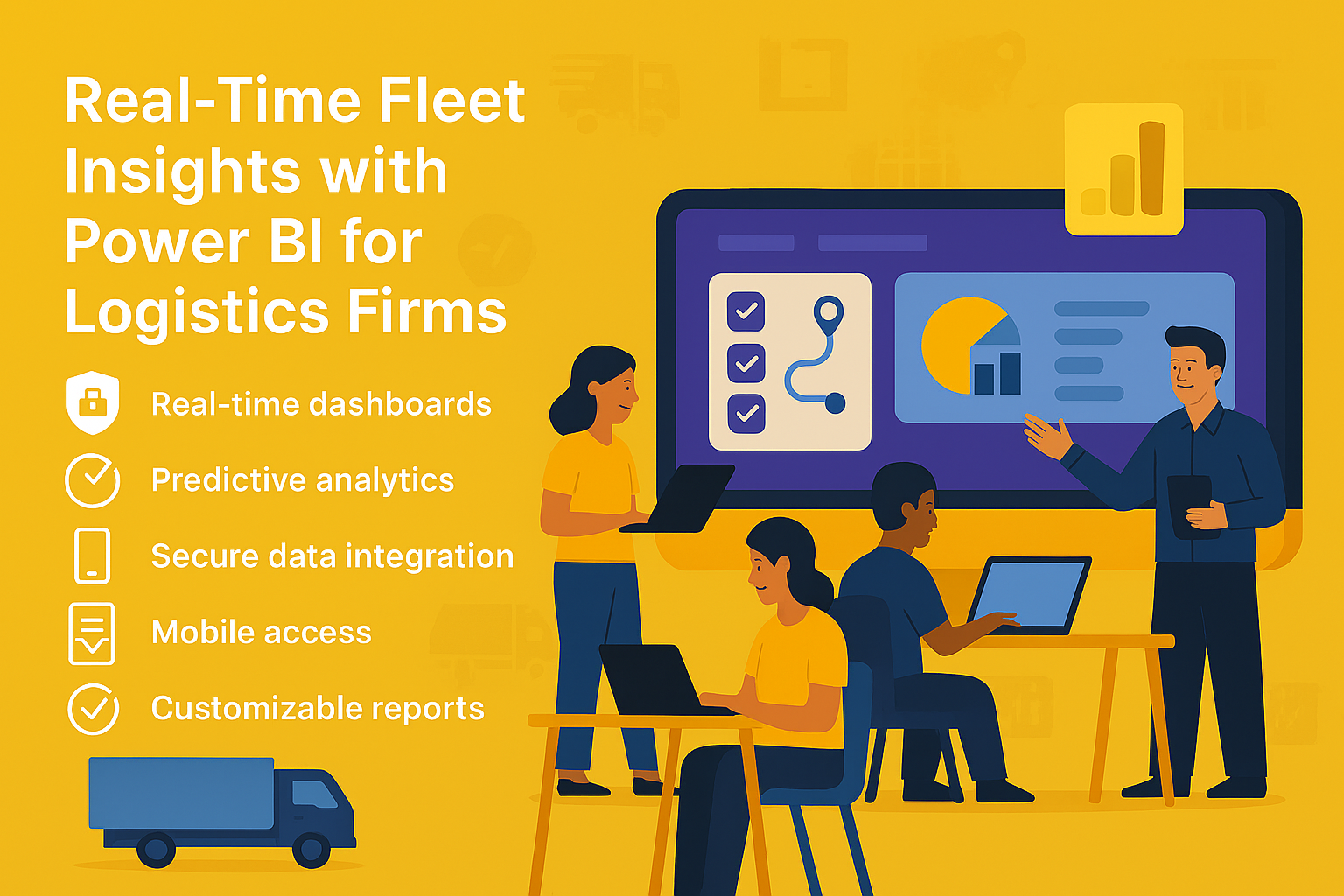
1. Introduction to Real-Time Fleet Insights for Logistics Firms
Real-Time Fleet Insights for Logistics Firms are essential for optimizing operations, reducing costs, and improving customer satisfaction. With growing demand for faster deliveries and efficient routing, logistics companies need actionable data at their fingertips.
Why Are Real-Time Insights Important?
- Operational Efficiency: Reduce idle time and optimize routes.
- Cost Control: Monitor fuel consumption and maintenance costs.
- Customer Experience: Provide accurate delivery ETAs and updates.
Real-Time Fleet Insights for Logistics Firms empower businesses to make data-driven decisions for better performance and profitability.
2. Why Microsoft Power BI?
Microsoft Power BI is a powerful business intelligence tool that transforms raw fleet data into interactive dashboards and actionable insights.
Why Use Power BI for Fleet Analytics?
- Integration: Connects with GPS systems, IoT sensors, and ERP platforms.
- Visualization: Offers dynamic dashboards for real-time fleet monitoring.
- Scalability: Handles large datasets from multiple vehicles and regions.
- Predictive Analytics: Enables forecasting for maintenance and route optimization.
3. 10 Ways Microsoft Power BI Enhances Fleet Insights
Here are ten practical ways Power BI helps logistics firms gain real-time fleet insights:
1. Live Vehicle Tracking
Monitor vehicle locations in real time using GPS data.
Benefit: Improves route planning and reduces delays.
2. Fuel Consumption Analysis
Visualize fuel usage trends across the fleet.
Benefit: Identify inefficiencies and reduce costs.
3. Driver Performance Dashboards
Track speed, idle time, and compliance metrics.
Benefit: Enhance safety and productivity.
4. Predictive Maintenance Alerts
Forecast maintenance needs based on historical data.
Benefit: Prevent breakdowns and reduce downtime.
5. Route Optimization Insights
Analyze delivery routes for time and cost efficiency.
Benefit: Improve delivery speed and reduce fuel costs.
6. Load Utilization Metrics
Monitor cargo weight and space utilization.
Benefit: Maximize capacity and reduce empty miles.
7. Compliance and Safety Reporting
Generate reports for regulatory compliance and audits.
Benefit: Avoid penalties and maintain safety standards.
8. Customer Delivery ETAs
Provide accurate estimated delivery times using real-time data.
Benefit: Enhance customer satisfaction.
9. Cost Analysis Dashboards
Track operational costs including fuel, maintenance, and tolls.
Benefit: Improve budgeting and profitability.
10. Automated Reporting
Schedule and share fleet performance reports with stakeholders.
Benefit: Save time and improve collaboration.
4. Key Benefits of Microsoft Power BI for Logistics Firms
- Real-Time Insights: Monitor fleet performance instantly.
- Improved Accuracy: Consolidates data from multiple sources.
- Enhanced Visualization: Interactive dashboards simplify complex data.
- Predictive Capabilities: Anticipate maintenance and route issues.
- Cost Efficiency: Reduces manual reporting efforts.
5. Common Use Cases
- Fleet Tracking: Monitor vehicle locations and routes.
- Fuel Efficiency Analysis: Identify high-consumption vehicles.
- Driver Behavior Monitoring: Improve safety and compliance.
- Maintenance Forecasting: Reduce downtime with predictive alerts.
- Customer Service Dashboards: Provide real-time delivery updates.
6. Real-World Examples of Microsoft Power BI for Fleet Insights
Here are detailed examples of how logistics firms use Power BI:
Example 1: Global Logistics Provider
A multinational logistics company uses Power BI to integrate GPS and IoT data.
- Dashboards show real-time vehicle locations, fuel consumption, and driver performance.
- Result: Reduced delivery delays by 25% and improved fuel efficiency by 15%.
Example 2: Regional Delivery Service
A regional courier service leverages Power BI for predictive maintenance and route optimization.
- Forecasts maintenance needs and optimizes delivery routes.
- Result: Cut maintenance costs by 20% and improved on-time delivery rates.
Example 3: E-Commerce Logistics Partner
An e-commerce logistics firm uses Power BI for customer delivery ETAs and compliance reporting.
- Provides accurate delivery times and automates compliance reports.
- Result: Increased customer satisfaction scores and reduced audit preparation time.
Example 4: Freight Transport Company
A freight company integrates Power BI with ERP systems for cost analysis dashboards.
- Tracks operational costs and identifies cost-saving opportunities.
- Result: Improved profitability by 12% through better resource allocation.
7. Step-by-Step Guide to Setup Microsoft Power BI
Follow these steps to implement Power BI for fleet analytics:
- Sign in to Power BI: Access via Microsoft 365 portal.
- Connect Data Sources: Integrate GPS, IoT sensors, and ERP systems.
- Build Dashboards: Use templates for fleet tracking and cost analysis.
- Apply Filters: Segment data by region, vehicle type, and driver.
- Share Reports: Schedule automated reports for stakeholders.
Pro Tip: Use Power BI Premium for advanced AI and predictive analytics.
8. Best Practices
- Define KPIs Clearly: Focus on metrics that matter most for fleet performance.
- Ensure Data Quality: Validate sources before integration.
- Use Role-Based Access: Protect sensitive operational data.
- Leverage AI Features: Enable forecasting and anomaly detection.
- Regularly Update Dashboards: Keep insights fresh and relevant.
9. Challenges and How to Overcome
While Power BI simplifies fleet analytics, logistics firms may face challenges:
- Data Integration Complexity: Use connectors and APIs effectively.
- User Adoption: Provide training for operations and analytics teams.
- Cost Management: Monitor premium feature usage.
- Data Privacy Compliance: Ensure adherence to transportation regulations.
Solution: Start with core dashboards and scale gradually.
10. Conclusion
Microsoft Power BI transforms fleet management for logistics firms by providing real-time insights, predictive capabilities, and interactive dashboards. Companies that embrace Power BI gain a competitive edge in operational efficiency and customer satisfaction.
🚀 Ready to Drive Smarter Logistics Decisions?
Whether you manage a small fleet or a global logistics network, Power BI can give you the real-time insights you need to stay ahead.
👉 Let Motekx help you get started.
We specialize in digital transformation for logistics—offering free consulting, custom Power BI dashboards, and end-to-end analytics solutions tailored to your needs.
📞 Contact us today to schedule a free discovery session.
📧 Email: info@motekx.be
Let’s build smarter, faster, and more connected logistics—together.

Oct 18, 2025 | Microsoft Teams |
1. Introduction to Secure Collaboration for Financial Advisors
Secure Collaboration for Financial Advisors is critical in today’s digital-first financial landscape. Advisors handle sensitive client data, regulatory documents, and confidential investment strategies. Ensuring secure communication and collaboration is not optional—it’s a compliance requirement.
Why Is Secure Collaboration Important?
- Data Protection: Financial data breaches can lead to severe penalties.
- Regulatory Compliance: Meet standards like GDPR, FINRA, and SEC.
- Client Trust: Secure communication builds confidence and loyalty.
Secure Collaboration for Financial Advisors empowers firms to protect client data while enabling seamless teamwork.
2. Why Microsoft Teams?
Microsoft Teams is a secure, enterprise-grade collaboration platform that combines chat, video conferencing, file sharing, and compliance features.
Why Use Microsoft Teams for Financial Services?
- End-to-End Encryption: Protects sensitive conversations.
- Compliance Tools: Supports industry regulations and audit trails.
- Integration: Works with Microsoft 365 and third-party financial apps.
- Scalability: Suitable for small advisory firms and large institutions.
3. 10 Ways Microsoft Teams Enhances Secure Collaboration
Here are ten practical ways Microsoft Teams helps financial advisors collaborate securely:
1. Encrypted Messaging
All chats and calls are encrypted end-to-end.
Benefit: Protects sensitive client discussions.
2. Secure File Sharing
Share documents with built-in encryption and access controls.
Benefit: Prevents unauthorized access to financial data.
3. Compliance Recording
Enable meeting recording with compliance policies.
Benefit: Simplifies audits and regulatory checks.
4. Multi-Factor Authentication
Require MFA for all users accessing Teams.
Benefit: Reduces risk of unauthorized access.
5. Data Loss Prevention (DLP)
Prevent accidental sharing of sensitive information.
Benefit: Ensures compliance with financial regulations.
6. Role-Based Access Control
Assign permissions based on user roles.
Benefit: Limits access to confidential files.
7. Secure Guest Access
Allow external clients to join meetings securely.
Benefit: Enhances collaboration without compromising security.
8. Integration with Financial Apps
Connect Teams with CRM and portfolio management tools.
Benefit: Streamlines workflows while maintaining security.
9. Audit Logs and Reporting
Track user activity for compliance audits.
Benefit: Provides transparency and accountability.
10. Mobile Security
Enable secure access on mobile devices with conditional policies.
Benefit: Supports advisors working remotely.
4. Key Benefits of Microsoft Teams for Financial Advisors
- Regulatory Compliance: Built-in tools for FINRA, SEC, and GDPR adherence.
- Enhanced Security: Encryption, MFA, and DLP policies.
- Improved Productivity: Centralized communication and document sharing.
- Client Confidence: Secure collaboration builds trust.
- Scalability: Works for firms of all sizes.
5. Common Use Cases
- Client Meetings: Conduct secure video calls with encrypted communication.
- Document Collaboration: Share investment reports and contracts securely.
- Team Coordination: Manage internal projects with compliance controls.
- Regulatory Audits: Provide audit-ready logs and meeting recordings.
- Remote Advisory Services: Enable secure collaboration from any location.
6. Real-World Examples of Microsoft Teams for Secure Collaboration
Here are detailed examples of how financial firms use Microsoft Teams:
Example 1: Wealth Management Firm
A global wealth management company uses Teams for secure client meetings and document sharing.
- Implements MFA and DLP policies for compliance.
- Result: Reduced data breach risk and improved client trust.
Example 2: Investment Advisory Group
An advisory group integrates Teams with CRM tools for portfolio discussions and compliance recording.
- Result: Streamlined workflows and faster audit preparation.
Example 3: Regional Financial Institution
A regional bank uses Teams for remote advisory services and secure guest access.
- Result: Expanded client reach while maintaining security standards.
Example 4: Independent Financial Advisors
Independent advisors leverage Teams for mobile security and encrypted messaging.
- Result: Increased flexibility without compromising compliance.
7. Step-by-Step Guide to Setup Microsoft Teams
Follow these steps to implement Teams for secure collaboration:
- Sign in to Microsoft Teams: Access via Microsoft 365 portal.
- Configure Security Settings: Enable MFA, encryption, and DLP policies.
- Set Up Compliance Recording: Apply retention and audit policies.
- Create Teams and Channels: Organize by client or project.
- Integrate Apps: Connect CRM and financial tools.
Pro Tip: Use Microsoft 365 Compliance Center for advanced security settings.
8. Best Practices
- Enable MFA for All Users: Reduce unauthorized access risks.
- Apply DLP Policies: Prevent accidental data leaks.
- Use Role-Based Access: Limit sensitive data exposure.
- Regularly Review Audit Logs: Ensure compliance and detect anomalies.
- Train Advisors on Security Protocols: Promote best practices.
9. Challenges and How to Overcome
While Teams simplifies secure collaboration, financial firms may face challenges:
- User Adoption: Provide training and onboarding sessions.
- Integration Complexity: Use certified connectors for financial apps.
- Cost Management: Monitor premium feature usage.
- Compliance Updates: Stay informed about regulatory changes.
Solution: Start with core security features and scale gradually.
10. Conclusion
Microsoft Teams transforms secure collaboration for financial advisors by offering encrypted communication, compliance tools, and productivity features. Firms that adopt Teams gain a competitive edge in client trust and regulatory adherence.
🚀Ready to Secure Your Financial Collaboration?
Whether you’re an independent advisor or part of a global firm, Microsoft Teams can help you collaborate securely and efficiently.
👉 Let Motekx help you get started.
We specialize in digital transformation for financial services—offering free consulting, custom Teams setups, and end-to-end IT solutions tailored to your needs.
📞 Contact us today to schedule a free discovery session.
📧 Email: info@motekx.be
Let’s build smarter, safer, and more connected financial services—together.
Oct 18, 2025 | Microsoft Teams |
1. Introduction to Retail Staff Coordination Made Easy
Retail Staff Coordination Made Easy is essential for managing store operations, scheduling shifts, and ensuring smooth communication between managers and associates. In a fast-paced retail environment, delays or miscommunication can lead to poor customer experiences and lost revenue.
Why Is Staff Coordination Important?
- Operational Efficiency: Ensure tasks are completed on time.
- Customer Satisfaction: Quick responses improve service quality.
- Employee Engagement: Clear communication reduces stress and confusion.
Focus Keyword at the start: Retail Staff Coordination Made Easy helps retailers streamline workflows and improve team productivity.
2. Why Microsoft Teams?
Microsoft Teams is a secure, enterprise-grade collaboration platform that combines chat, video conferencing, file sharing, and scheduling tools—all in one place.
Why Use Microsoft Teams for Retail?
- Real-Time Communication: Instant messaging and video calls.
- Shift Scheduling: Integration with Shifts app for workforce management.
- Mobile Access: Perfect for on-the-go retail staff.
- Secure Collaboration: Built-in compliance and data protection.
3. 10 Ways Microsoft Teams Improves Retail Staff Coordination
Here are ten practical ways Microsoft Teams makes retail coordination easy:
1. Instant Messaging
Enable quick communication between store associates and managers.
Benefit: Reduces delays in task execution.
2. Video Meetings
Conduct virtual huddles for daily briefings.
Benefit: Saves time and ensures clarity.
3. Shift Scheduling with Shifts
Manage employee schedules directly in Teams.
Benefit: Avoids conflicts and improves workforce planning.
4. Task Management
Assign tasks and track progress using Planner integration.
Benefit: Enhances accountability and productivity.
5. Secure File Sharing
Share promotional materials and policy documents securely.
Benefit: Keeps everyone updated with the latest information.
6. Mobile App Access
Allow staff to access Teams on smartphones.
Benefit: Perfect for employees on the shop floor.
7. Announcement Channels
Broadcast important updates to all staff.
Benefit: Ensures consistent communication.
8. Integration with POS and Inventory Systems
Connect Teams with retail systems for real-time updates.
Benefit: Improves operational efficiency.
9. Compliance and Audit Features
Maintain logs for HR and compliance audits.
Benefit: Simplifies regulatory reporting.
10. Training and Onboarding
Deliver training sessions via Teams meetings and shared resources.
Benefit: Speeds up onboarding and skill development.
4. Key Benefits of Microsoft Teams for Retail Operations
- Improved Communication: Instant messaging and video calls.
- Better Scheduling: Integrated shift management tools.
- Enhanced Security: Compliance-ready collaboration.
- Increased Productivity: Centralized platform for all tasks.
- Scalability: Works for single stores or large retail chains.
5. Common Use Cases
- Daily Briefings: Conduct quick team meetings before store opening.
- Shift Management: Schedule and swap shifts easily.
- Inventory Updates: Share stock alerts and restocking tasks.
- Promotional Campaign Coordination: Distribute marketing materials securely.
- Employee Training: Host virtual sessions for new hires.
6. Real-World Examples of Microsoft Teams for Retail Coordination
Here are detailed examples of how retail businesses use Microsoft Teams:
Example 1: Global Retail Chain
A multinational retailer uses Teams for shift scheduling and task management across hundreds of stores.
- Result: Reduced scheduling conflicts by 40% and improved task completion rates.
Example 2: Boutique Fashion Store
A small boutique leverages Teams for secure file sharing and announcements.
- Result: Faster rollout of seasonal promotions and improved staff engagement.
Example 3: Grocery Store Network
A grocery chain integrates Teams with inventory systems and POS platforms.
- Result: Real-time stock updates and reduced out-of-stock incidents.
Example 4: Electronics Retailer
An electronics retailer uses Teams for training and onboarding.
- Result: Reduced onboarding time by 30% and improved employee retention.
7. Step-by-Step Guide to Setup Microsoft Teams
Follow these steps to implement Teams for retail staff coordination:
- Sign in to Microsoft Teams: Access via Microsoft 365 portal.
- Create Teams and Channels: Organize by store or department.
- Enable Shifts App: Configure schedules and permissions.
- Integrate Apps: Connect POS, inventory, and HR systems.
- Train Staff: Provide onboarding sessions for Teams usage.
Pro Tip: Use Teams templates for retail operations to speed up setup.
8. Best Practices
- Use Dedicated Channels: Separate communication by store or function.
- Enable Notifications: Ensure staff receive critical updates.
- Apply Role-Based Access: Protect sensitive data.
- Regularly Review Audit Logs: Maintain compliance.
- Promote Mobile Usage: Encourage staff to use Teams on smartphones.
9. Challenges and How to Overcome
While Teams simplifies retail coordination, businesses may face challenges:
- User Adoption: Provide training and support.
- Integration Complexity: Use certified connectors for retail systems.
- Cost Management: Monitor premium feature usage.
- Compliance Updates: Stay informed about retail regulations.
Solution: Start with core features and scale gradually.
10. Conclusion
Microsoft Teams transforms retail staff coordination by offering real-time communication, secure collaboration, and integrated scheduling tools. Retailers that adopt Teams gain a competitive edge in operational efficiency and employee engagement.
🚀How Motekx Can Help
Motekx specializes in implementing Microsoft 365 solutions for retail businesses. From setting up Teams Channels to training your staff, we ensure your digital transformation is smooth and impactful.
📞 Contact us today to schedule a free discovery session.
📧 Email: info@motekx.be
Let’s build smarter, faster, and more connected retail team—together.
Oct 18, 2025 | Microsoft Teams |
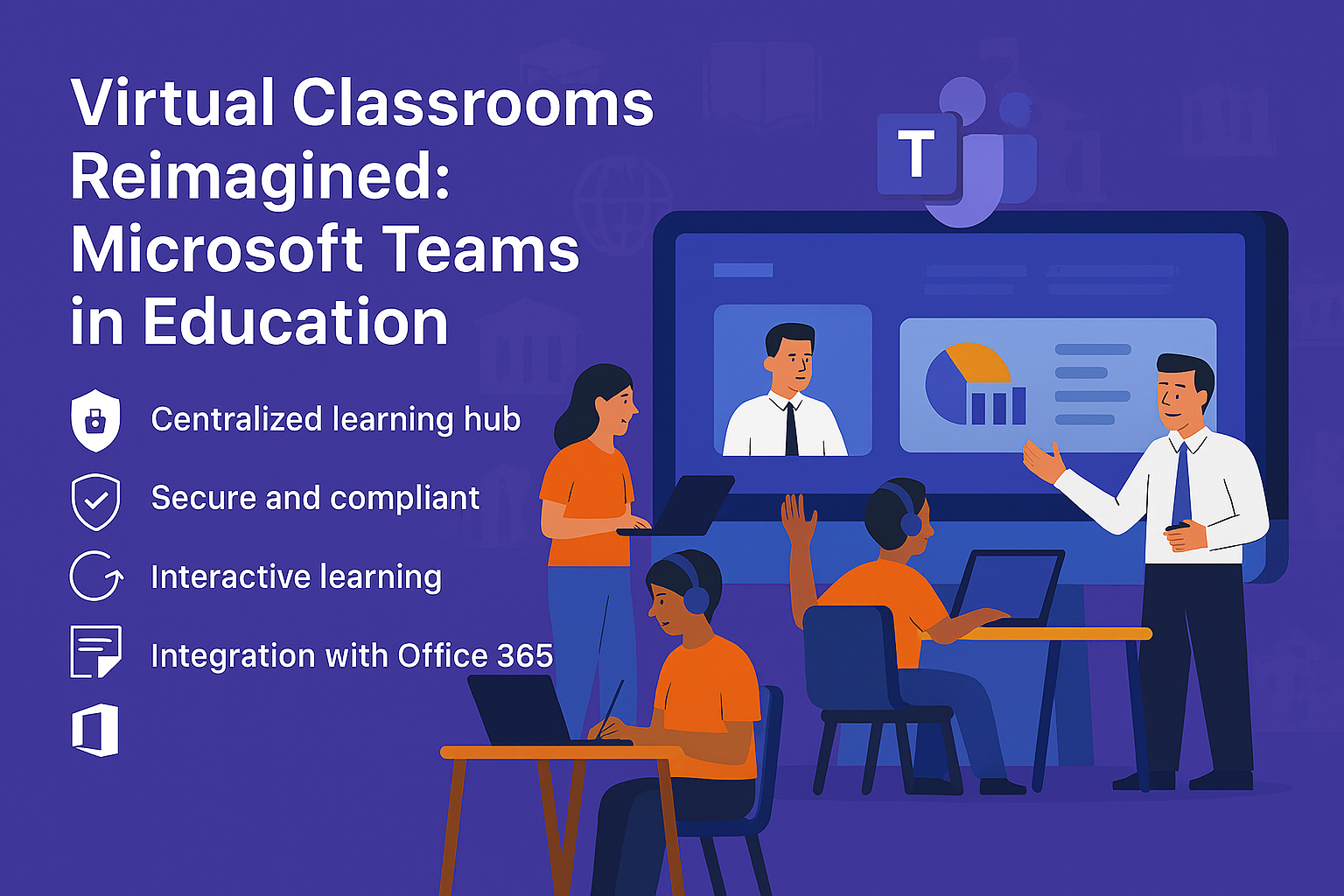
1. Introduction to Virtual Classrooms Reimagined for Education
Virtual Classrooms Reimagined for Education is about creating engaging, interactive, and secure online learning environments. Traditional online classes often lack collaboration and real-time engagement. Microsoft Teams changes that by offering tools that make virtual learning dynamic and inclusive.
Why Are Virtual Classrooms Important?
- Accessibility: Enable learning from anywhere.
- Engagement: Foster collaboration and active participation.
- Flexibility: Support hybrid and remote learning models.
Virtual Classrooms Reimagined for Education empower educators to deliver high-quality learning experiences beyond physical boundaries.
2. Why Microsoft Teams?
Microsoft Teams is a secure, enterprise-grade collaboration platform designed for education. It combines video conferencing, chat, file sharing, and integrated apps to create a complete virtual classroom solution.
Why Use Microsoft Teams for Education?
- Interactive Learning: Real-time video and chat features.
- Secure Collaboration: Built-in compliance and data protection.
- Integration: Works with Microsoft 365 and education apps like OneNote and Flip.
- Scalability: Suitable for schools, universities, and online programs.
3. 10 Ways Microsoft Teams Enhances Virtual Classrooms
Here are ten practical ways Microsoft Teams reimagines virtual learning:
1. Live Video Classes
Host interactive sessions with HD video and audio.
Benefit: Creates a real classroom feel online.
2. Breakout Rooms
Divide students into smaller groups for discussions.
Benefit: Encourages collaboration and peer learning.
3. Integrated Assignments
Create, distribute, and grade assignments within Teams.
Benefit: Streamlines academic workflows.
4. Secure File Sharing
Share study materials and resources securely.
Benefit: Protects student data and intellectual property.
5. Attendance Tracking
Automatically record attendance during sessions.
Benefit: Simplifies administrative tasks.
6. Real-Time Polls and Quizzes
Engage students with interactive polls and quizzes.
Benefit: Improves participation and feedback.
7. Immersive Reader
Support inclusive learning with accessibility tools.
Benefit: Helps students with diverse learning needs.
8. Integration with Learning Apps
Connect apps like Flip, Kahoot, and OneNote.
Benefit: Enhances engagement and creativity.
9. Parent and Guardian Access
Enable secure communication with parents.
Benefit: Improves transparency and involvement.
10. Recorded Sessions
Record classes for future reference and revision.
Benefit: Supports self-paced learning.
4. Key Benefits of Microsoft Teams for Education
- Enhanced Engagement: Interactive tools keep students involved.
- Improved Accessibility: Supports hybrid and remote learning.
- Secure Collaboration: Compliance-ready platform for education.
- Streamlined Administration: Integrated assignments and attendance.
- Scalability: Works for small classes and large institutions.
5. Common Use Cases
- Virtual Lectures: Host live classes for remote students.
- Group Projects: Use breakout rooms for collaborative work.
- Homework Submission: Manage assignments digitally.
- Parent-Teacher Meetings: Conduct secure virtual conferences.
- Professional Development: Train educators online.
6. Real-World Examples of Microsoft Teams in Virtual Education
Here are detailed examples of how educational institutions use Microsoft Teams:
Example 1: University Online Programs
A global university uses Teams for virtual lectures and breakout rooms.
- Result: Increased student engagement and reduced dropout rates.
Example 2: K-12 Schools
Schools leverage Teams for assignments and parent communication.
- Result: Improved transparency and faster feedback cycles.
Example 3: Vocational Training Centers
Training centers use Teams for interactive quizzes and recorded sessions.
- Result: Enhanced learning outcomes and flexible scheduling.
Example 4: International Language Schools
Language schools integrate Teams with learning apps like Flip and Kahoot.
- Result: More engaging lessons and better student performance.
7. Step-by-Step Guide to Setup Microsoft Teams
Follow these steps to implement Teams for virtual classrooms:
- Sign in to Microsoft Teams: Access via Microsoft 365 portal.
- Create Class Teams: Organize by subject or grade.
- Enable Assignments and Attendance: Configure settings for academic workflows.
- Integrate Learning Apps: Add tools like OneNote and Flip.
- Train Educators and Students: Provide onboarding sessions.
Pro Tip: Use Teams Education templates for faster setup.
8. Best Practices
- Use Breakout Rooms Effectively: Encourage group discussions.
- Enable Notifications: Ensure students receive updates.
- Apply Role-Based Access: Protect sensitive student data.
- Regularly Review Engagement Metrics: Improve teaching strategies.
- Promote Accessibility Tools: Support diverse learning needs.
9. Challenges and How to Overcome
While Teams simplifies virtual learning, institutions may face challenges:
- User Adoption: Provide training and support for educators.
- Integration Complexity: Use certified connectors for learning apps.
- Cost Management: Monitor premium feature usage.
- Compliance Updates: Stay informed about education regulations.
Solution: Start with core features and scale gradually.
10. Conclusion
Microsoft Teams reimagines virtual classrooms by offering interactive learning, secure collaboration, and integrated academic tools. Educational institutions that adopt Teams gain a competitive edge in delivering engaging and inclusive learning experiences.
🚀 Ready to Reimagine Your Classroom?
Whether you’re teaching a small group or managing a large institution, Microsoft Teams can transform your virtual learning experience.
👉 Let Motekx help you get started.
We specialize in digital transformation for education—offering free consulting, custom Teams setups, and end-to-end IT solutions tailored to your needs.
📞 Contact us today to schedule a free discovery session.
📧 Email: info@motekx.be
Let’s build smarter, more connected classrooms—together.
Oct 18, 2025 | SharePoint |
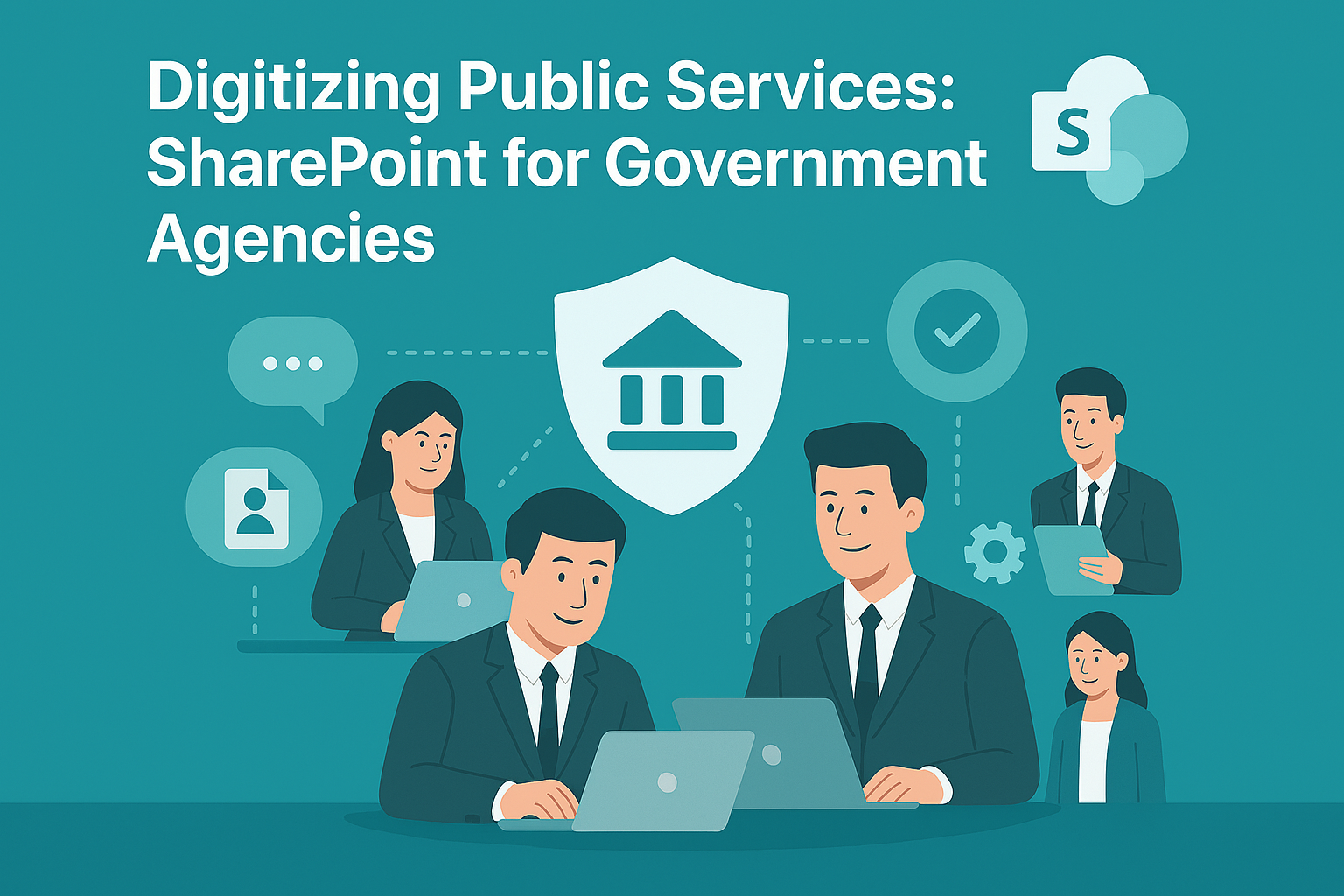
1. Introduction to Digitizing Public Services for Government Agencies
Digitizing Public Services for Government Agencies is no longer optional—it’s a necessity. Citizens expect fast, transparent, and accessible services. Traditional paper-based processes slow down service delivery and increase operational costs. Microsoft SharePoint offers a secure, scalable platform to modernize public services.
Why Is Digitization Important?
- Efficiency: Reduce paperwork and manual processes.
- Transparency: Improve accountability and citizen trust.
- Accessibility: Provide services online, anytime, anywhere.
Digitizing Public Services for Government Agencies ensures better governance and improved citizen experience.
2. Why Microsoft SharePoint?
Microsoft SharePoint is a robust platform for document management, collaboration, and workflow automation. It enables government agencies to build secure portals, manage records, and streamline processes.
Why Use SharePoint for Public Services?
- Secure Collaboration: Built-in compliance and encryption.
- Workflow Automation: Automate approvals and service requests.
- Integration: Works with Microsoft 365 and government systems.
- Scalability: Suitable for local, regional, and national agencies.
3. 10 Ways Microsoft SharePoint Transforms Public Service Delivery
Here are ten practical ways SharePoint digitizes public services:
1. Citizen Service Portals
Create online portals for service requests and applications.
Benefit: Improves accessibility and reduces in-person visits.
2. Document Management
Digitize and store official documents securely.
Benefit: Eliminates paper-based inefficiencies.
3. Workflow Automation
Automate approvals for permits, licenses, and benefits.
Benefit: Speeds up service delivery.
4. Secure Collaboration
Enable inter-departmental collaboration with role-based access.
Benefit: Protects sensitive government data.
5. Records Management
Maintain compliance with retention policies and audit trails.
Benefit: Simplifies regulatory reporting.
6. Integration with e-Government Systems
Connect SharePoint with ERP and CRM platforms.
Benefit: Creates a unified digital ecosystem.
7. Mobile Access
Provide staff and citizens access via mobile devices.
Benefit: Supports remote and field operations.
8. Public Announcements
Publish notices and updates on SharePoint sites.
Benefit: Enhances transparency and communication.
9. Feedback and Surveys
Collect citizen feedback through integrated forms.
Benefit: Improves service quality and engagement.
10. Analytics and Reporting
Generate dashboards for service performance metrics.
Benefit: Enables data-driven decision-making.
4. Key Benefits of Microsoft SharePoint for Government Agencies
- Improved Efficiency: Automates manual processes.
- Enhanced Security: Compliance-ready platform for sensitive data.
- Better Citizen Experience: Online portals and mobile access.
- Cost Savings: Reduces paper and administrative overhead.
- Scalability: Works for small municipalities and large agencies.
5. Common Use Cases
- Permit Applications: Automate submission and approval workflows.
- Public Records Access: Provide citizens with secure document access.
- Inter-Agency Collaboration: Share resources across departments.
- Policy Publishing: Distribute regulations and guidelines online.
- Citizen Feedback Collection: Use forms and surveys for engagement.
6. Real-World Examples of Microsoft SharePoint in Government Services
Here are detailed examples of how agencies use SharePoint:
Example 1: Municipal Government
A city government uses SharePoint for permit applications and document management.
- Result: Reduced processing time by 50% and improved citizen satisfaction.
Example 2: State Agency
A state agency leverages SharePoint for workflow automation and compliance reporting.
- Result: Streamlined approvals and simplified audits.
Example 3: National Tax Authority
A tax department uses SharePoint for secure collaboration and public announcements.
- Result: Increased transparency and reduced operational costs.
Example 4: Public Health Department
A health agency integrates SharePoint with feedback forms and analytics dashboards.
- Result: Improved service delivery and faster response to citizen needs.
7. Step-by-Step Guide to Setup Microsoft SharePoint
Follow these steps to implement SharePoint for public services:
- Sign in to SharePoint: Access via Microsoft 365 portal.
- Create Sites and Libraries: Organize by department or service type.
- Configure Permissions: Apply role-based access controls.
- Enable Workflows: Automate approvals and notifications.
- Integrate Apps: Connect ERP, CRM, and e-Government systems.
Pro Tip: Use SharePoint templates for government portals to speed up deployment.
8. Best Practices
- Apply Compliance Policies: Ensure adherence to regulations.
- Use Metadata for Documents: Improve search and retrieval.
- Enable Multi-Factor Authentication: Protect sensitive data.
- Regularly Review Audit Logs: Maintain transparency and security.
- Train Staff and Citizens: Promote adoption and usability.
9. Challenges and How to Overcome
While SharePoint simplifies digitization, agencies may face challenges:
- User Adoption: Provide training and support.
- Integration Complexity: Use certified connectors for government systems.
- Cost Management: Monitor premium feature usage.
- Compliance Updates: Stay informed about regulatory changes.
Solution: Start with core features and scale gradually.
10. Conclusion
Microsoft SharePoint redefines public service delivery by offering secure portals, workflow automation, and integrated collaboration tools. Government agencies that adopt SharePoint gain efficiency, transparency, and citizen trust.
🚀 Ready to Modernize Your Public Services?
Whether you’re a local municipality or a national agency, SharePoint can help you digitize processes, improve efficiency, and enhance citizen trust.
👉 Let Motekx help you get started.
We specialize in digital transformation for government agencies—offering free consulting, custom SharePoint setups, and end-to-end IT solutions tailored to your needs.
📞 Contact us today to schedule a free discovery session.
📧 Email: info@motekx.be
Let’s build smarter, faster, and more connected public services—together.
Oct 18, 2025 | SharePoint |
1. Introduction to Secure Patient Records for Healthcare
Secure Patient Records for Healthcare is a top priority for hospitals, clinics, and medical practices. Patient data includes sensitive information such as medical history, prescriptions, and insurance details. Protecting this data is not only a legal requirement under HIPAA and GDPR but also essential for maintaining patient trust.
Why Is Data Security Important in Healthcare?
- Compliance: Avoid penalties by meeting HIPAA and GDPR standards.
- Patient Trust: Secure systems build confidence in healthcare providers.
- Operational Efficiency: Digital records reduce paperwork and errors.
Secure Patient Records for Healthcare ensures confidentiality, integrity, and accessibility of medical data.
2. Why Microsoft SharePoint?
Microsoft SharePoint is a robust platform for document management and collaboration, designed with enterprise-grade security features. It helps healthcare organizations digitize records while maintaining compliance.
Why Use SharePoint for Healthcare Records?
- Encryption: Protects data at rest and in transit.
- Compliance Tools: Built-in HIPAA and GDPR support.
- Access Control: Role-based permissions for sensitive data.
- Integration: Works with Microsoft 365 and EHR systems.
3. 10 Ways Microsoft SharePoint Protects Patient Records
Here are ten practical ways SharePoint secures healthcare data:
1. Encrypted Storage
All patient records are encrypted at rest and in transit.
Benefit: Prevents unauthorized access during storage and transfer.
2. Role-Based Access Control
Assign permissions based on user roles (doctor, nurse, admin).
Benefit: Limits exposure of sensitive data.
3. Multi-Factor Authentication
Require MFA for all users accessing patient records.
Benefit: Adds an extra layer of security.
4. Data Loss Prevention (DLP)
Prevent accidental sharing of sensitive information.
Benefit: Ensures compliance with healthcare regulations.
5. Secure Document Libraries
Store medical records in dedicated, secure libraries.
Benefit: Organizes data and enhances security.
6. Compliance Auditing
Maintain logs for HIPAA and GDPR audits.
Benefit: Simplifies regulatory reporting.
7. Integration with EHR Systems
Connect SharePoint with electronic health record platforms.
Benefit: Creates a unified patient data ecosystem.
8. Mobile Security
Enable secure access on mobile devices with conditional policies.
Benefit: Supports doctors and nurses on the go.
9. Automated Workflows
Digitize processes like patient consent and insurance approvals.
Benefit: Reduces manual errors and speeds up operations.
10. Backup and Disaster Recovery
Ensure data redundancy and quick recovery in case of outages.
Benefit: Protects against data loss and downtime.
4. Key Benefits of Microsoft SharePoint for Healthcare Providers
- Regulatory Compliance: Built-in HIPAA and GDPR support.
- Enhanced Security: Encryption, MFA, and DLP policies.
- Improved Efficiency: Automates workflows and reduces paperwork.
- Better Patient Experience: Secure and fast access to records.
- Scalability: Works for small clinics and large hospital networks.
5. Common Use Cases
- Electronic Medical Records (EMR): Store and manage patient files securely.
- Consent Management: Automate patient consent workflows.
- Insurance Documentation: Digitize claims and approvals.
- Inter-Department Collaboration: Share data securely across departments.
- Compliance Reporting: Generate audit-ready logs and reports.
6. Real-World Examples of Microsoft SharePoint for Patient Data Security
Here are detailed examples of how healthcare organizations use SharePoint:
Example 1: Regional Hospital Network
A hospital network uses SharePoint for secure document libraries and compliance auditing.
- Result: Reduced HIPAA audit preparation time by 60%.
Example 2: Private Clinic
A clinic leverages SharePoint for role-based access and mobile security.
- Result: Improved data protection and faster patient care.
Example 3: Health Insurance Provider
An insurance company integrates SharePoint with automated workflows for claims processing.
- Result: Reduced processing time and improved accuracy.
Example 4: Telehealth Service
A telehealth provider uses SharePoint for secure file sharing and EHR integration.
- Result: Enhanced patient trust and streamlined virtual consultations.
7. Step-by-Step Guide to Setup Microsoft SharePoint
Follow these steps to implement SharePoint for healthcare records:
- Sign in to SharePoint: Access via Microsoft 365 portal.
- Create Secure Libraries: Organize by patient or department.
- Configure Permissions: Apply role-based access controls.
- Enable Compliance Features: Activate HIPAA and GDPR settings.
- Integrate Apps: Connect EHR and insurance systems.
Pro Tip: Use SharePoint templates for healthcare compliance to speed up deployment.
8. Best Practices
- Enable MFA for All Users: Reduce unauthorized access risks.
- Apply DLP Policies: Prevent accidental data leaks.
- Use Metadata for Records: Improve search and retrieval.
- Regularly Review Audit Logs: Maintain compliance and detect anomalies.
- Train Staff on Security Protocols: Promote best practices.
9. Challenges and How to Overcome
While SharePoint simplifies healthcare data management, organizations may face challenges:
- User Adoption: Provide training and onboarding sessions.
- Integration Complexity: Use certified connectors for EHR systems.
- Cost Management: Monitor premium feature usage.
- Compliance Updates: Stay informed about regulatory changes.
Solution: Start with core security features and scale gradually.
10. Conclusion
Microsoft SharePoint transforms healthcare data management by offering encrypted storage, compliance tools, and workflow automation. Providers that adopt SharePoint gain efficiency, security, and patient trust.
🚀 Ready to Revolutionize Your Healthcare IT?
Whether you’re managing a single clinic or a multi-location hospital network, SharePoint can secure your patient records and streamline operations.
👉 Let Motekx help you get started.
We specialize in digital transformation for healthcare organizations—offering free consulting, custom SharePoint setups, and end-to-end IT solutions tailored to your needs.
📞 Contact us today to schedule a free discovery session.
📧 Email: info@motekx.be
Let’s build a safer, smarter, and more connected healthcare system—together.
Oct 18, 2025 | SharePoint |
1. Introduction to Document Management in Manufacturing Plants
Document Management in Manufacturing Plants is critical for maintaining operational efficiency, compliance, and safety. Manufacturing environments generate vast amounts of documentation—such as SOPs, quality control reports, maintenance logs, and compliance certificates. Managing these documents manually leads to inefficiencies and risks.
Why Is Document Management Important?
- Compliance: Meet ISO, OSHA, and industry standards.
- Operational Efficiency: Reduce downtime caused by missing or outdated documents.
- Data Security: Protect sensitive production and design information.
Document Management in Manufacturing Plants ensures accuracy, accessibility, and compliance across all operations.
2. Why Microsoft SharePoint?
Microsoft SharePoint is a robust platform for document storage, collaboration, and workflow automation. It provides manufacturing plants with a centralized, secure, and scalable solution for managing critical documents.
Why Use SharePoint for Manufacturing?
- Secure Storage: Built-in encryption and compliance features.
- Workflow Automation: Streamline approvals and document updates.
- Integration: Works with ERP, MES, and Microsoft 365 tools.
- Scalability: Suitable for single plants or global manufacturing networks.
3. 10 Ways Microsoft SharePoint Enhances Document Management
Here are ten practical ways SharePoint transforms document control in manufacturing:
1. Centralized Document Repository
Store all SOPs, manuals, and compliance documents in one secure location.
Benefit: Eliminates duplication and improves accessibility.
2. Version Control
Track changes and maintain the latest document versions.
Benefit: Prevents errors caused by outdated information.
3. Role-Based Access
Assign permissions based on job roles (operators, supervisors, auditors).
Benefit: Protects sensitive data and ensures compliance.
4. Workflow Automation
Automate document approval processes for quality and compliance.
Benefit: Speeds up updates and reduces manual errors.
5. Mobile Access
Enable staff to access documents on tablets and smartphones.
Benefit: Supports shop-floor operations and remote audits.
6. Integration with ERP and MES
Connect SharePoint with enterprise systems for real-time data sync.
Benefit: Creates a unified digital ecosystem.
7. Compliance Management
Apply retention policies and audit trails for ISO and OSHA standards.
Benefit: Simplifies regulatory reporting.
8. Secure File Sharing
Share documents with suppliers and contractors securely.
Benefit: Enhances collaboration without compromising security.
9. Document Tagging and Metadata
Use metadata for quick search and categorization.
Benefit: Improves retrieval and reduces downtime.
10. Automated Alerts
Notify teams about document updates or compliance deadlines.
Benefit: Ensures timely actions and reduces risks.
4. Key Benefits of Microsoft SharePoint for Manufacturing
- Improved Efficiency: Centralized storage and automated workflows.
- Enhanced Security: Encryption, MFA, and compliance tools.
- Better Collaboration: Secure sharing with internal and external stakeholders.
- Cost Savings: Reduces paper-based processes and manual errors.
- Scalability: Works for small plants and global enterprises.
5. Common Use Cases
- Standard Operating Procedures (SOPs): Store and update SOPs securely.
- Quality Control Reports: Automate approval workflows for QC documents.
- Maintenance Logs: Digitize and track equipment maintenance records.
- Compliance Certificates: Manage ISO and OSHA documentation.
- Supplier Collaboration: Share technical specifications securely.
6. Real-World Examples of Microsoft SharePoint for Document Control
Here are detailed examples of how manufacturing plants use SharePoint:
Example 1: Automotive Manufacturer
An automotive company uses SharePoint for centralized SOP storage and version control.
- Result: Reduced production errors by 30% and improved compliance audits.
Example 2: Food Processing Plant
A food manufacturer leverages SharePoint for workflow automation and compliance management.
- Result: Faster approval cycles and zero missed regulatory deadlines.
Example 3: Electronics Factory
An electronics plant integrates SharePoint with ERP systems for real-time document updates.
- Result: Improved operational efficiency and reduced downtime.
Example 4: Global Chemical Company
A chemical manufacturer uses SharePoint for secure supplier collaboration and document tagging.
- Result: Enhanced supply chain transparency and faster product launches.
7. Step-by-Step Guide to Setup Microsoft SharePoint
Follow these steps to implement SharePoint for document management:
- Sign in to SharePoint: Access via Microsoft 365 portal.
- Create Document Libraries: Organize by department or process.
- Configure Permissions: Apply role-based access controls.
- Enable Workflows: Automate approvals and notifications.
- Integrate Apps: Connect ERP, MES, and compliance tools.
Pro Tip: Use SharePoint templates for manufacturing operations to speed up deployment.
8. Best Practices
- Apply Metadata: Improve search and categorization.
- Enable MFA for All Users: Reduce unauthorized access risks.
- Regularly Review Audit Logs: Maintain compliance and detect anomalies.
- Train Staff on SharePoint Usage: Promote adoption and efficiency.
- Schedule Document Reviews: Keep SOPs and compliance documents updated.
9. Challenges and How to Overcome
While SharePoint simplifies document management, manufacturing plants may face challenges:
- User Adoption: Provide training and onboarding sessions.
- Integration Complexity: Use certified connectors for ERP and MES systems.
- Cost Management: Monitor premium feature usage.
- Compliance Updates: Stay informed about regulatory changes.
Solution: Start with core features and scale gradually.
10. Conclusion
Microsoft SharePoint revolutionizes document management in manufacturing plants by offering secure storage, workflow automation, and compliance tools. Plants that adopt SharePoint gain efficiency, accuracy, and regulatory confidence.
🚀 Ready to Transform Your Manufacturing Operations?
Whether you’re running a single plant or managing a global supply chain, SharePoint can revolutionize how your teams handle documents, collaborate, and stay compliant.
👉 Let Motekx help you get started.
We specialize in digital transformation for manufacturing and industrial businesses—offering free consulting, custom SharePoint setups, and end-to-end IT solutions tailored to your needs.
📞 Contact us today to schedule a free discovery session.
📧 Email: info@motekx.be
Let’s build smarter, faster, and more connected manufacturing—together.