Oct 18, 2025 | Microsoft Teams |
1. Introduction to Secure Collaboration for Financial Advisors
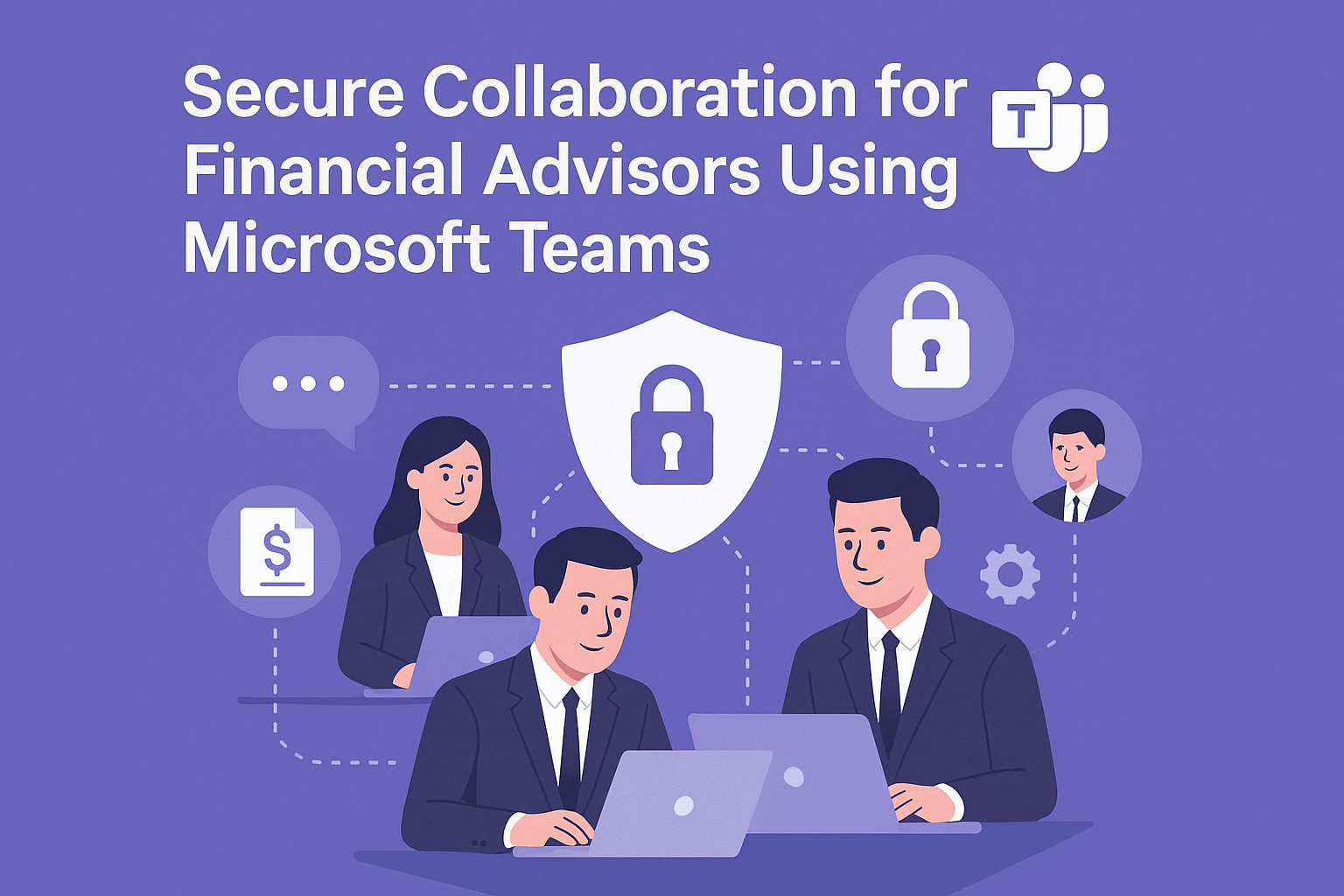
Secure Collaboration for Financial Advisors is critical in today’s digital-first financial landscape. Advisors handle sensitive client data, regulatory documents, and confidential investment strategies. Ensuring secure communication and collaboration is not optional—it’s a compliance requirement.
Why Is Secure Collaboration Important?
- Data Protection: Financial data breaches can lead to severe penalties.
- Regulatory Compliance: Meet standards like GDPR, FINRA, and SEC.
- Client Trust: Secure communication builds confidence and loyalty.
Secure Collaboration for Financial Advisors empowers firms to protect client data while enabling seamless teamwork.
2. Why Microsoft Teams?
Microsoft Teams is a secure, enterprise-grade collaboration platform that combines chat, video conferencing, file sharing, and compliance features.
Why Use Microsoft Teams for Financial Services?
- End-to-End Encryption: Protects sensitive conversations.
- Compliance Tools: Supports industry regulations and audit trails.
- Integration: Works with Microsoft 365 and third-party financial apps.
- Scalability: Suitable for small advisory firms and large institutions.
3. 10 Ways Microsoft Teams Enhances Secure Collaboration
Here are ten practical ways Microsoft Teams helps financial advisors collaborate securely:
1. Encrypted Messaging
All chats and calls are encrypted end-to-end.
Benefit: Protects sensitive client discussions.
2. Secure File Sharing
Share documents with built-in encryption and access controls.
Benefit: Prevents unauthorized access to financial data.
3. Compliance Recording
Enable meeting recording with compliance policies.
Benefit: Simplifies audits and regulatory checks.
4. Multi-Factor Authentication
Require MFA for all users accessing Teams.
Benefit: Reduces risk of unauthorized access.
5. Data Loss Prevention (DLP)
Prevent accidental sharing of sensitive information.
Benefit: Ensures compliance with financial regulations.
6. Role-Based Access Control
Assign permissions based on user roles.
Benefit: Limits access to confidential files.
7. Secure Guest Access
Allow external clients to join meetings securely.
Benefit: Enhances collaboration without compromising security.
8. Integration with Financial Apps
Connect Teams with CRM and portfolio management tools.
Benefit: Streamlines workflows while maintaining security.
9. Audit Logs and Reporting
Track user activity for compliance audits.
Benefit: Provides transparency and accountability.
10. Mobile Security
Enable secure access on mobile devices with conditional policies.
Benefit: Supports advisors working remotely.
4. Key Benefits of Microsoft Teams for Financial Advisors
- Regulatory Compliance: Built-in tools for FINRA, SEC, and GDPR adherence.
- Enhanced Security: Encryption, MFA, and DLP policies.
- Improved Productivity: Centralized communication and document sharing.
- Client Confidence: Secure collaboration builds trust.
- Scalability: Works for firms of all sizes.
5. Common Use Cases
- Client Meetings: Conduct secure video calls with encrypted communication.
- Document Collaboration: Share investment reports and contracts securely.
- Team Coordination: Manage internal projects with compliance controls.
- Regulatory Audits: Provide audit-ready logs and meeting recordings.
- Remote Advisory Services: Enable secure collaboration from any location.
6. Real-World Examples of Microsoft Teams for Secure Collaboration
Here are detailed examples of how financial firms use Microsoft Teams:
Example 1: Wealth Management Firm
A global wealth management company uses Teams for secure client meetings and document sharing.
- Implements MFA and DLP policies for compliance.
- Result: Reduced data breach risk and improved client trust.
Example 2: Investment Advisory Group
An advisory group integrates Teams with CRM tools for portfolio discussions and compliance recording.
- Result: Streamlined workflows and faster audit preparation.
Example 3: Regional Financial Institution
A regional bank uses Teams for remote advisory services and secure guest access.
- Result: Expanded client reach while maintaining security standards.
Example 4: Independent Financial Advisors
Independent advisors leverage Teams for mobile security and encrypted messaging.
- Result: Increased flexibility without compromising compliance.
7. Step-by-Step Guide to Setup Microsoft Teams
Follow these steps to implement Teams for secure collaboration:
- Sign in to Microsoft Teams: Access via Microsoft 365 portal.
- Configure Security Settings: Enable MFA, encryption, and DLP policies.
- Set Up Compliance Recording: Apply retention and audit policies.
- Create Teams and Channels: Organize by client or project.
- Integrate Apps: Connect CRM and financial tools.
Pro Tip: Use Microsoft 365 Compliance Center for advanced security settings.
8. Best Practices
- Enable MFA for All Users: Reduce unauthorized access risks.
- Apply DLP Policies: Prevent accidental data leaks.
- Use Role-Based Access: Limit sensitive data exposure.
- Regularly Review Audit Logs: Ensure compliance and detect anomalies.
- Train Advisors on Security Protocols: Promote best practices.
9. Challenges and How to Overcome
While Teams simplifies secure collaboration, financial firms may face challenges:
- User Adoption: Provide training and onboarding sessions.
- Integration Complexity: Use certified connectors for financial apps.
- Cost Management: Monitor premium feature usage.
- Compliance Updates: Stay informed about regulatory changes.
Solution: Start with core security features and scale gradually.
10. Conclusion
Microsoft Teams transforms secure collaboration for financial advisors by offering encrypted communication, compliance tools, and productivity features. Firms that adopt Teams gain a competitive edge in client trust and regulatory adherence.
🚀Ready to Secure Your Financial Collaboration?
Whether you’re an independent advisor or part of a global firm, Microsoft Teams can help you collaborate securely and efficiently.
👉 Let Motekx help you get started.
We specialize in digital transformation for financial services—offering free consulting, custom Teams setups, and end-to-end IT solutions tailored to your needs.
📞 Contact us today to schedule a free discovery session.
📧 Email: info@motekx.be
Let’s build smarter, safer, and more connected financial services—together.
Oct 18, 2025 | Microsoft Teams |
1. Introduction to Retail Staff Coordination Made Easy
Retail Staff Coordination Made Easy is essential for managing store operations, scheduling shifts, and ensuring smooth communication between managers and associates. In a fast-paced retail environment, delays or miscommunication can lead to poor customer experiences and lost revenue.
Why Is Staff Coordination Important?
- Operational Efficiency: Ensure tasks are completed on time.
- Customer Satisfaction: Quick responses improve service quality.
- Employee Engagement: Clear communication reduces stress and confusion.
Focus Keyword at the start: Retail Staff Coordination Made Easy helps retailers streamline workflows and improve team productivity.
2. Why Microsoft Teams?
Microsoft Teams is a secure, enterprise-grade collaboration platform that combines chat, video conferencing, file sharing, and scheduling tools—all in one place.
Why Use Microsoft Teams for Retail?
- Real-Time Communication: Instant messaging and video calls.
- Shift Scheduling: Integration with Shifts app for workforce management.
- Mobile Access: Perfect for on-the-go retail staff.
- Secure Collaboration: Built-in compliance and data protection.
3. 10 Ways Microsoft Teams Improves Retail Staff Coordination
Here are ten practical ways Microsoft Teams makes retail coordination easy:
1. Instant Messaging
Enable quick communication between store associates and managers.
Benefit: Reduces delays in task execution.
2. Video Meetings
Conduct virtual huddles for daily briefings.
Benefit: Saves time and ensures clarity.
3. Shift Scheduling with Shifts
Manage employee schedules directly in Teams.
Benefit: Avoids conflicts and improves workforce planning.
4. Task Management
Assign tasks and track progress using Planner integration.
Benefit: Enhances accountability and productivity.
5. Secure File Sharing
Share promotional materials and policy documents securely.
Benefit: Keeps everyone updated with the latest information.
6. Mobile App Access
Allow staff to access Teams on smartphones.
Benefit: Perfect for employees on the shop floor.
7. Announcement Channels
Broadcast important updates to all staff.
Benefit: Ensures consistent communication.
8. Integration with POS and Inventory Systems
Connect Teams with retail systems for real-time updates.
Benefit: Improves operational efficiency.
9. Compliance and Audit Features
Maintain logs for HR and compliance audits.
Benefit: Simplifies regulatory reporting.
10. Training and Onboarding
Deliver training sessions via Teams meetings and shared resources.
Benefit: Speeds up onboarding and skill development.
4. Key Benefits of Microsoft Teams for Retail Operations
- Improved Communication: Instant messaging and video calls.
- Better Scheduling: Integrated shift management tools.
- Enhanced Security: Compliance-ready collaboration.
- Increased Productivity: Centralized platform for all tasks.
- Scalability: Works for single stores or large retail chains.
5. Common Use Cases
- Daily Briefings: Conduct quick team meetings before store opening.
- Shift Management: Schedule and swap shifts easily.
- Inventory Updates: Share stock alerts and restocking tasks.
- Promotional Campaign Coordination: Distribute marketing materials securely.
- Employee Training: Host virtual sessions for new hires.
6. Real-World Examples of Microsoft Teams for Retail Coordination
Here are detailed examples of how retail businesses use Microsoft Teams:
Example 1: Global Retail Chain
A multinational retailer uses Teams for shift scheduling and task management across hundreds of stores.
- Result: Reduced scheduling conflicts by 40% and improved task completion rates.
Example 2: Boutique Fashion Store
A small boutique leverages Teams for secure file sharing and announcements.
- Result: Faster rollout of seasonal promotions and improved staff engagement.
Example 3: Grocery Store Network
A grocery chain integrates Teams with inventory systems and POS platforms.
- Result: Real-time stock updates and reduced out-of-stock incidents.
Example 4: Electronics Retailer
An electronics retailer uses Teams for training and onboarding.
- Result: Reduced onboarding time by 30% and improved employee retention.
7. Step-by-Step Guide to Setup Microsoft Teams
Follow these steps to implement Teams for retail staff coordination:
- Sign in to Microsoft Teams: Access via Microsoft 365 portal.
- Create Teams and Channels: Organize by store or department.
- Enable Shifts App: Configure schedules and permissions.
- Integrate Apps: Connect POS, inventory, and HR systems.
- Train Staff: Provide onboarding sessions for Teams usage.
Pro Tip: Use Teams templates for retail operations to speed up setup.
8. Best Practices
- Use Dedicated Channels: Separate communication by store or function.
- Enable Notifications: Ensure staff receive critical updates.
- Apply Role-Based Access: Protect sensitive data.
- Regularly Review Audit Logs: Maintain compliance.
- Promote Mobile Usage: Encourage staff to use Teams on smartphones.
9. Challenges and How to Overcome
While Teams simplifies retail coordination, businesses may face challenges:
- User Adoption: Provide training and support.
- Integration Complexity: Use certified connectors for retail systems.
- Cost Management: Monitor premium feature usage.
- Compliance Updates: Stay informed about retail regulations.
Solution: Start with core features and scale gradually.
10. Conclusion
Microsoft Teams transforms retail staff coordination by offering real-time communication, secure collaboration, and integrated scheduling tools. Retailers that adopt Teams gain a competitive edge in operational efficiency and employee engagement.
🚀How Motekx Can Help
Motekx specializes in implementing Microsoft 365 solutions for retail businesses. From setting up Teams Channels to training your staff, we ensure your digital transformation is smooth and impactful.
📞 Contact us today to schedule a free discovery session.
📧 Email: info@motekx.be
Let’s build smarter, faster, and more connected retail team—together.
Oct 18, 2025 | Microsoft Teams |
1. Introduction to Virtual Classrooms Reimagined for Education
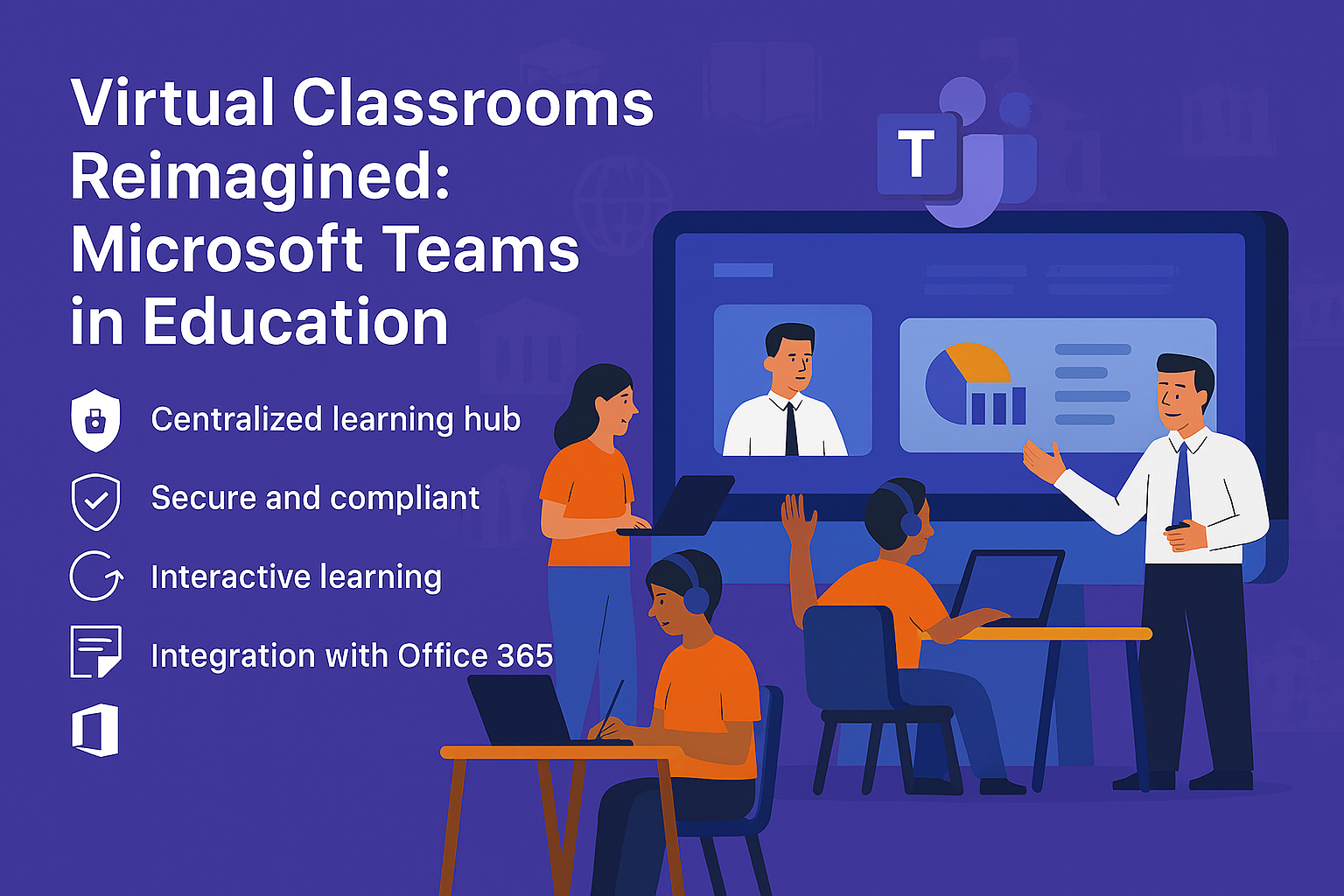
Virtual Classrooms Reimagined for Education is about creating engaging, interactive, and secure online learning environments. Traditional online classes often lack collaboration and real-time engagement. Microsoft Teams changes that by offering tools that make virtual learning dynamic and inclusive.
Why Are Virtual Classrooms Important?
- Accessibility: Enable learning from anywhere.
- Engagement: Foster collaboration and active participation.
- Flexibility: Support hybrid and remote learning models.
Virtual Classrooms Reimagined for Education empower educators to deliver high-quality learning experiences beyond physical boundaries.
2. Why Microsoft Teams?
Microsoft Teams is a secure, enterprise-grade collaboration platform designed for education. It combines video conferencing, chat, file sharing, and integrated apps to create a complete virtual classroom solution.
Why Use Microsoft Teams for Education?
- Interactive Learning: Real-time video and chat features.
- Secure Collaboration: Built-in compliance and data protection.
- Integration: Works with Microsoft 365 and education apps like OneNote and Flip.
- Scalability: Suitable for schools, universities, and online programs.
3. 10 Ways Microsoft Teams Enhances Virtual Classrooms
Here are ten practical ways Microsoft Teams reimagines virtual learning:
1. Live Video Classes
Host interactive sessions with HD video and audio.
Benefit: Creates a real classroom feel online.
2. Breakout Rooms
Divide students into smaller groups for discussions.
Benefit: Encourages collaboration and peer learning.
3. Integrated Assignments
Create, distribute, and grade assignments within Teams.
Benefit: Streamlines academic workflows.
4. Secure File Sharing
Share study materials and resources securely.
Benefit: Protects student data and intellectual property.
5. Attendance Tracking
Automatically record attendance during sessions.
Benefit: Simplifies administrative tasks.
6. Real-Time Polls and Quizzes
Engage students with interactive polls and quizzes.
Benefit: Improves participation and feedback.
7. Immersive Reader
Support inclusive learning with accessibility tools.
Benefit: Helps students with diverse learning needs.
8. Integration with Learning Apps
Connect apps like Flip, Kahoot, and OneNote.
Benefit: Enhances engagement and creativity.
9. Parent and Guardian Access
Enable secure communication with parents.
Benefit: Improves transparency and involvement.
10. Recorded Sessions
Record classes for future reference and revision.
Benefit: Supports self-paced learning.
4. Key Benefits of Microsoft Teams for Education
- Enhanced Engagement: Interactive tools keep students involved.
- Improved Accessibility: Supports hybrid and remote learning.
- Secure Collaboration: Compliance-ready platform for education.
- Streamlined Administration: Integrated assignments and attendance.
- Scalability: Works for small classes and large institutions.
5. Common Use Cases
- Virtual Lectures: Host live classes for remote students.
- Group Projects: Use breakout rooms for collaborative work.
- Homework Submission: Manage assignments digitally.
- Parent-Teacher Meetings: Conduct secure virtual conferences.
- Professional Development: Train educators online.
6. Real-World Examples of Microsoft Teams in Virtual Education
Here are detailed examples of how educational institutions use Microsoft Teams:
Example 1: University Online Programs
A global university uses Teams for virtual lectures and breakout rooms.
- Result: Increased student engagement and reduced dropout rates.
Example 2: K-12 Schools
Schools leverage Teams for assignments and parent communication.
- Result: Improved transparency and faster feedback cycles.
Example 3: Vocational Training Centers
Training centers use Teams for interactive quizzes and recorded sessions.
- Result: Enhanced learning outcomes and flexible scheduling.
Example 4: International Language Schools
Language schools integrate Teams with learning apps like Flip and Kahoot.
- Result: More engaging lessons and better student performance.
7. Step-by-Step Guide to Setup Microsoft Teams
Follow these steps to implement Teams for virtual classrooms:
- Sign in to Microsoft Teams: Access via Microsoft 365 portal.
- Create Class Teams: Organize by subject or grade.
- Enable Assignments and Attendance: Configure settings for academic workflows.
- Integrate Learning Apps: Add tools like OneNote and Flip.
- Train Educators and Students: Provide onboarding sessions.
Pro Tip: Use Teams Education templates for faster setup.
8. Best Practices
- Use Breakout Rooms Effectively: Encourage group discussions.
- Enable Notifications: Ensure students receive updates.
- Apply Role-Based Access: Protect sensitive student data.
- Regularly Review Engagement Metrics: Improve teaching strategies.
- Promote Accessibility Tools: Support diverse learning needs.
9. Challenges and How to Overcome
While Teams simplifies virtual learning, institutions may face challenges:
- User Adoption: Provide training and support for educators.
- Integration Complexity: Use certified connectors for learning apps.
- Cost Management: Monitor premium feature usage.
- Compliance Updates: Stay informed about education regulations.
Solution: Start with core features and scale gradually.
10. Conclusion
Microsoft Teams reimagines virtual classrooms by offering interactive learning, secure collaboration, and integrated academic tools. Educational institutions that adopt Teams gain a competitive edge in delivering engaging and inclusive learning experiences.
🚀 Ready to Reimagine Your Classroom?
Whether you’re teaching a small group or managing a large institution, Microsoft Teams can transform your virtual learning experience.
👉 Let Motekx help you get started.
We specialize in digital transformation for education—offering free consulting, custom Teams setups, and end-to-end IT solutions tailored to your needs.
📞 Contact us today to schedule a free discovery session.
📧 Email: info@motekx.be
Let’s build smarter, more connected classrooms—together.